View and update employee record details
Use the People tab to view and update employee record details, such as the skills log and holiday account.
- Open the People tab.
- Use the Search field to locate the record that you want to work with. Enter any term shown under the column headers:
- Click in any of the column headers to sort the records as required.
- Click … in the record that you want to work with and select View Employee.
- Click Add a new skill under the employee's name to add a record of a skill, such as a Health and Safety Certificate. The list of skills is preconfigured for you. Your selections determine the tasks that this employee can be assigned to. This field is optional.
- Select a skill from the list displayed.
- Click in
 to define start and end dates for the skill. Click
  to select dates in the popup window displayed. This is useful for logging where a skill or certification requires renewal or expires after a set amount of time. The Training widget on the Dashboard displays any employees having a skill that is set to expire in the next 4 weeks from the current date.
 - Click away from the popup and refresh the page.
- Use the checkbox next to one skill listed to mark it as the employee's Key Skill. This can be identified in reporting and filtering.
- Click
 next to a selected skill to remove it from the list.
 - Update the Account Information sections as required:
- Use the month dropdown to select the start month for this account for this employee.
- Uncheck the Viewable box to remove this information from reports. This is useful for removing discrepancies from reports, such as employees who have unusual working hours.
- Click Add Opening Balance and enter a Balance of hours/days.
- The employee opening balance changes. For example, if the employee has an increase in their 'Holiday Hours' from 264 hours to 300 hours then they would require a new opening balance of 300 for their Holiday Hours.
- The employee has any hours or days to carry forward at the end of the year. For example, an employee has 264 hours of holiday in a year but 14 hours are unused. Enter a new opening balance of 264 hours and a carried forward hours of 14 hours. The carried forward hours only apply to the specified year.
- Enter the current year in the Year field.
- Click
 .
. - Click next to a selected account record to remove it. This is useful for keeping account information up to date.
- Click Add Adjustment in your selection Account Information section if you need to adjust hours. For example, if an employee has purchased extra holiday hours:
- Enter the number of hours for the adjustment.
- Enter the date that the adjustment is added.
- Enter the Year that the adjustment applies to.
- Click .
- The Work History section displays all published and republished calendars for the selected employee.
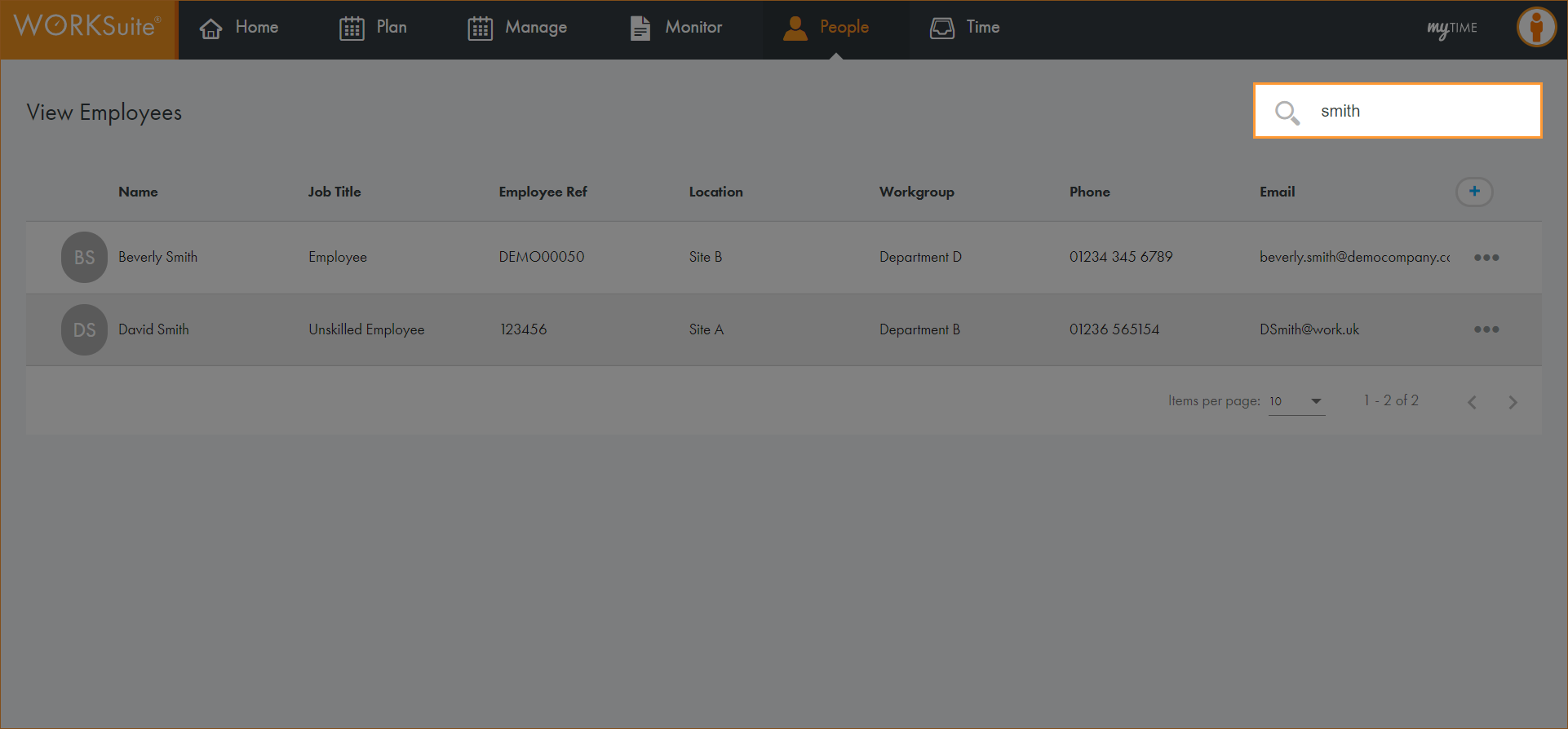
The records filter automatically.
The Employee Details screen is displayed:
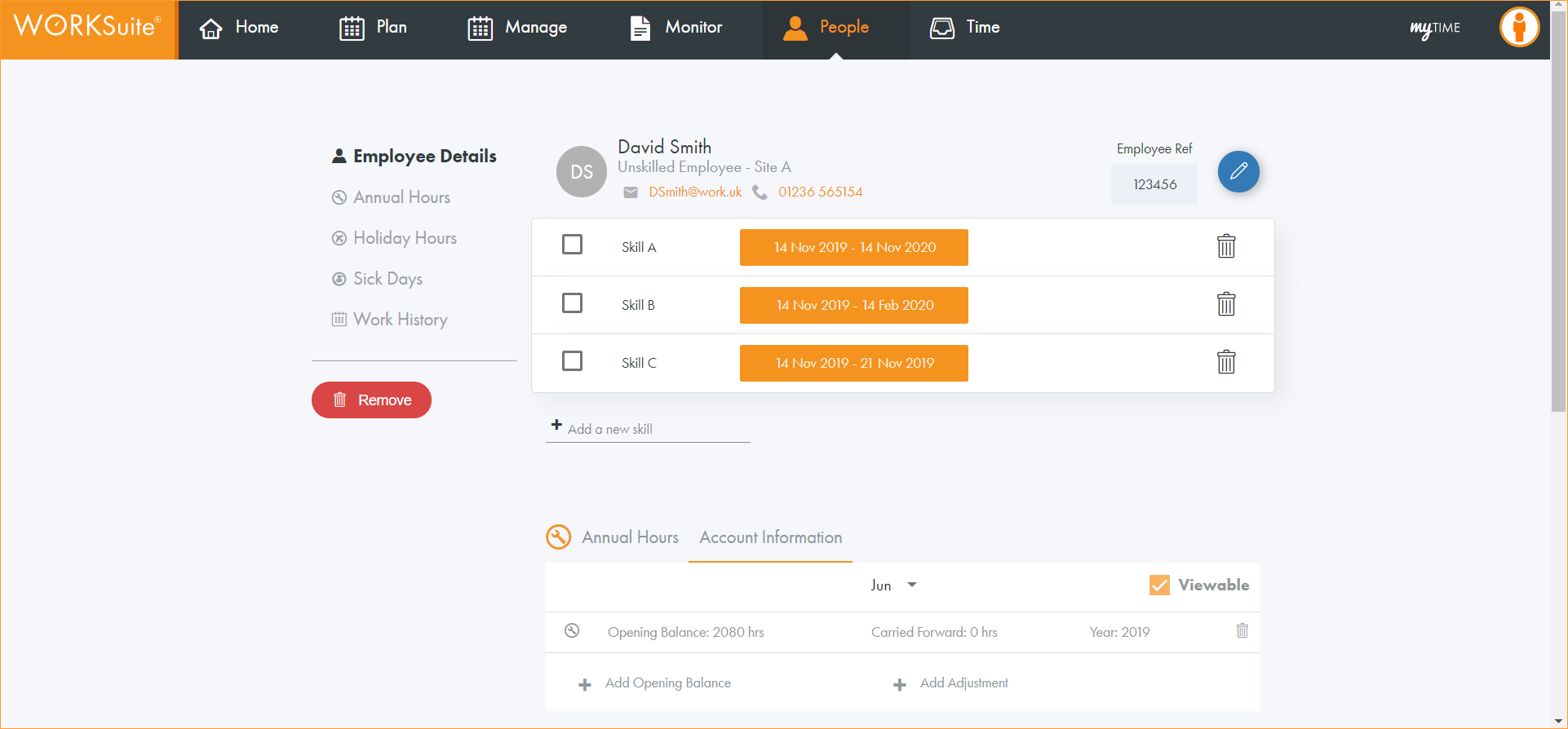
The skill is listed.
Note: The Account Information sections can be configured to suit you. The example shown uses Annual Hours, Holiday Hours and Sick Days. Click here for more help understanding employee accounts.
Opening balances only need to be defined once for each employee. The balance rolls forward into each new year as time progresses.
Enter an opening balance if either:
or