View the published shifts in a calendar
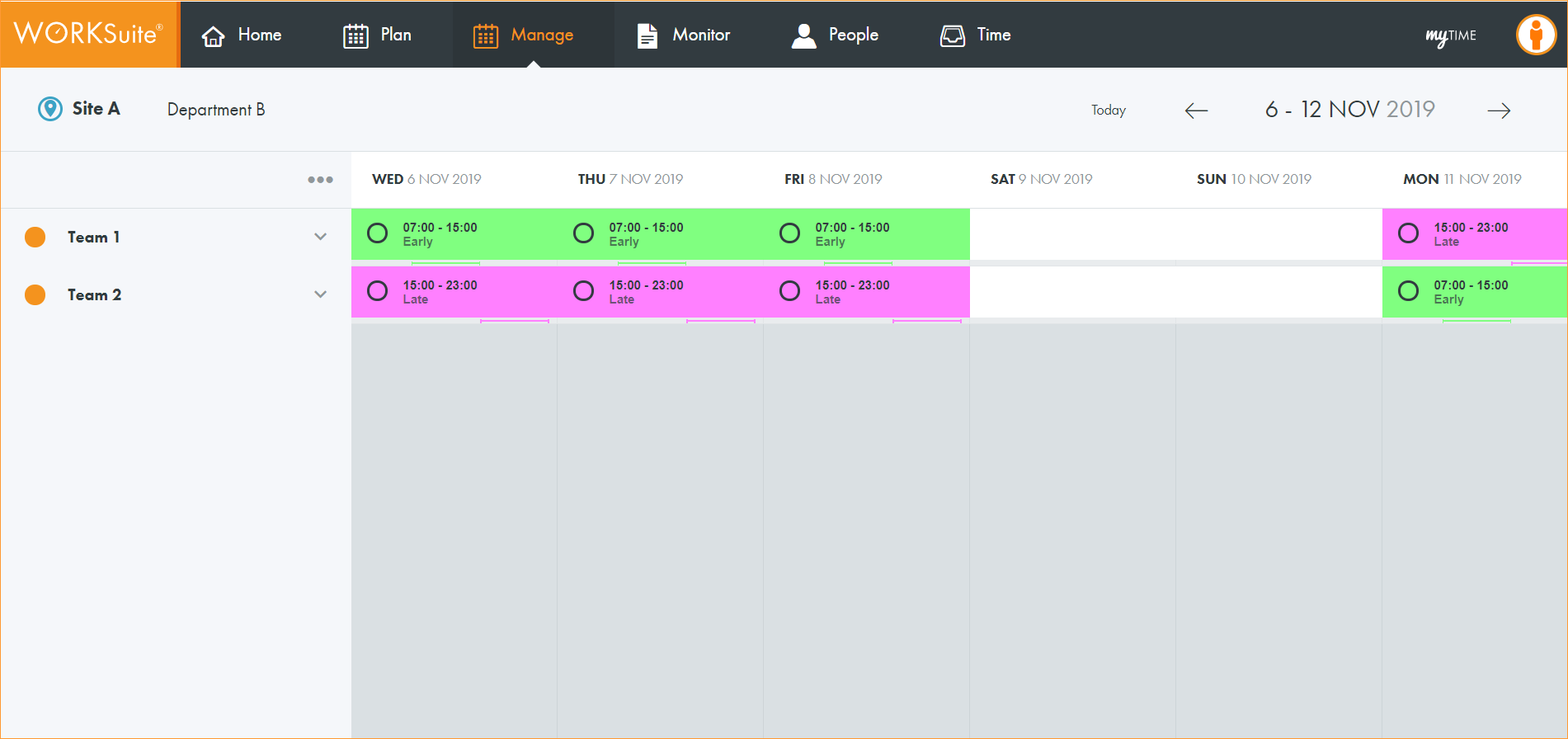
Use the Manage tab to view all of the employees listed in a published team shift. Any variances which have been applied to employees are also displayed in published shifts.
Note: Only published shifts are displayed in the Manage tab.
- Open the Manage tab:
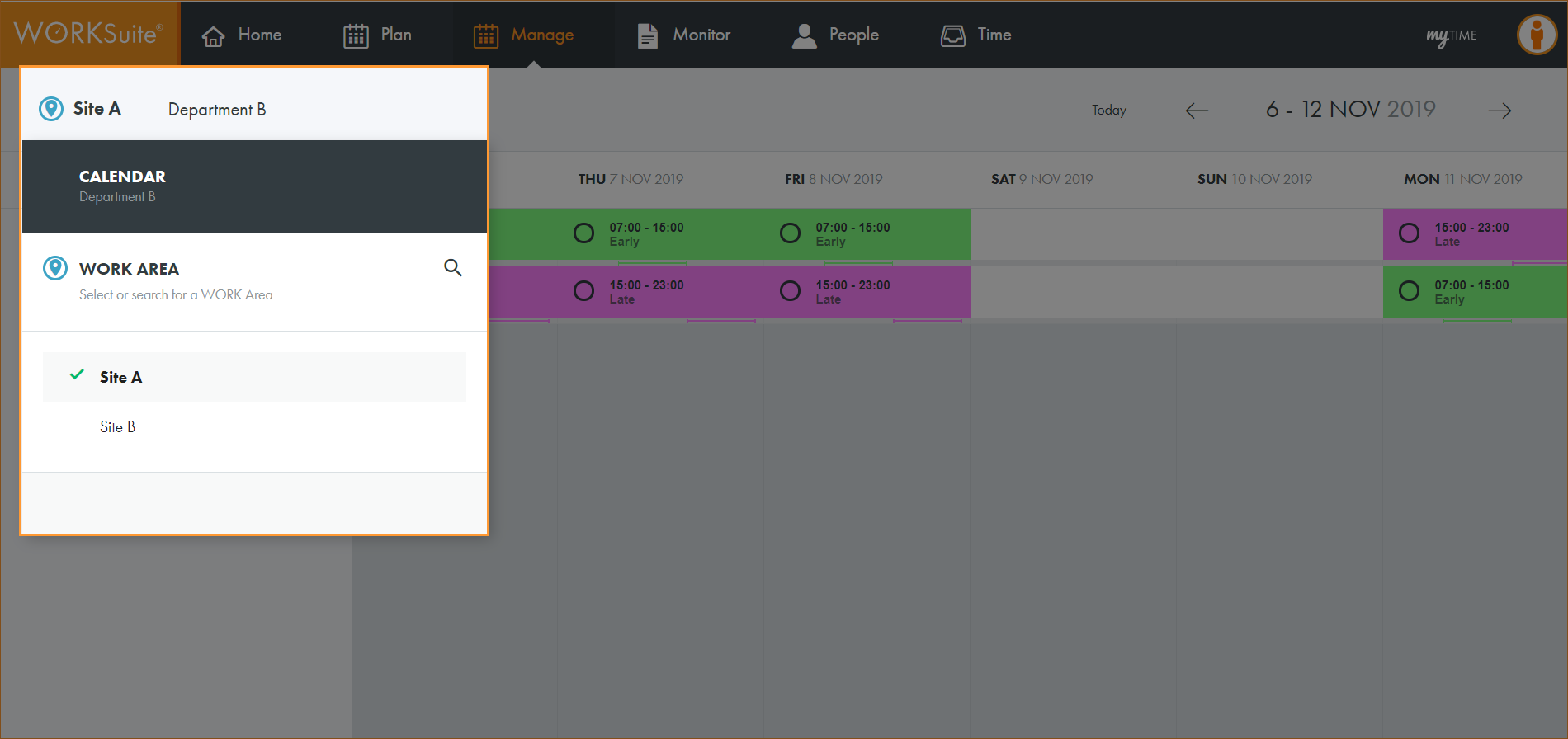
- Click
 and select the work area that you want to work with:
 - By default, your previously selected work area is preselected.
- If you only have access to a single calendar, this is pre-selected when the screen loads. There is no need to select a calendar.
- Select the calendar that you want to work with:
- Select Today or use the date navigation tools to select the dates that you want to view:
- Either:
- Click the arrow next to your selected team to expand the team list.
- Click ... in the top left of the header and select Employee View to view all employees without teams in first name alphabetical order. Click Team View in the menu to collapse the employee view.
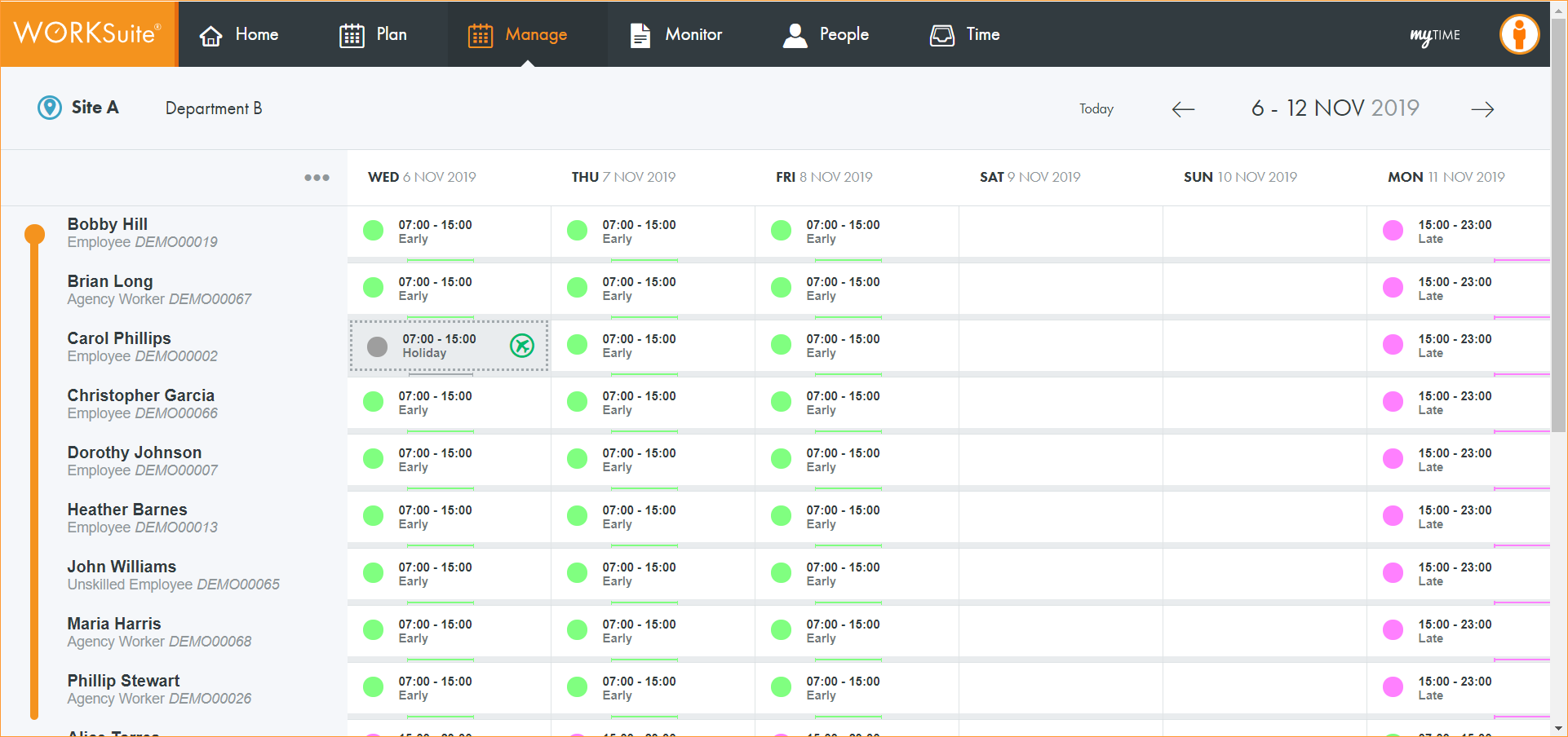
- The shift name is displayed in each cell. In the example shown Bobby Hill is working an Early shift on Wednesday 6 November and a Late shift on Monday 11 November.
- The times of each shift is displayed in each cell. In this example Bobby Hill is working between 07:00 and 15:00 on Friday 8 November.
- A coloured bar underneath each cell indicates the time span of the shift within the day.
- Each shift is highlighted a different colour. Bobby's Early shift is green and her Late shift is purple.
- If an employee has a full day of absence or holiday, their shift is highlighted grey to reinforce their non-availability status. In this example Carol Phillips is on holiday on Wednesday 6 November.
- Where an employee has been assigned a Standby shift they might be asked to work but are not yet scheduled.
- Icons shown next to employee shifts indicate any variances logged for the employee. Carol Phillips has a holiday on Wednesday 6 November.
-
Changes to location and workgroup are clearly displayed. In this example, Bobby Hill is worked in Department B until 11 November. They move to Department A on 12 November. Days are greyed out when Bobby is the displayed department.
-
A shift displays a variance icon if any changes have been made:
Note:
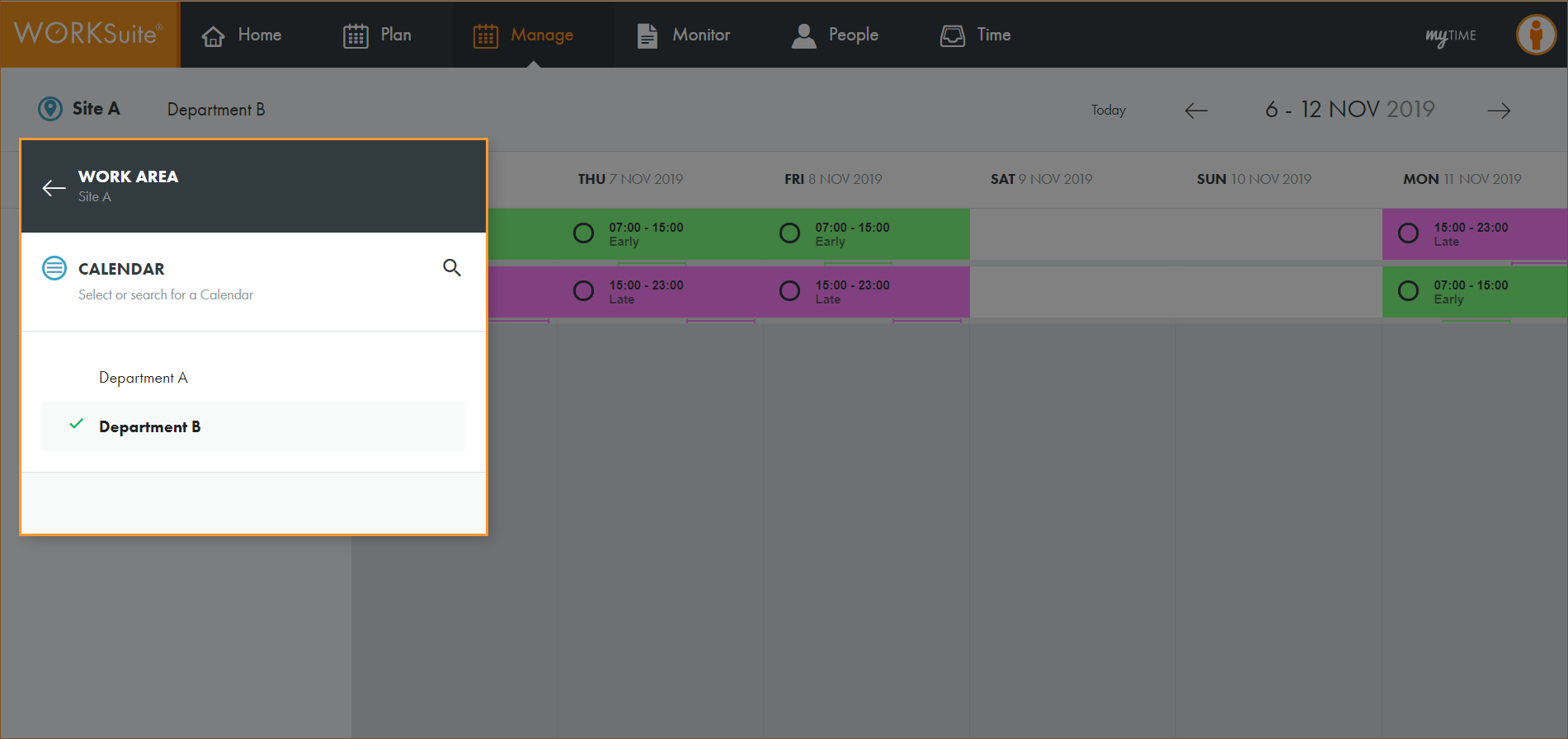
Note: By default, your previously selected calendar is preselected.
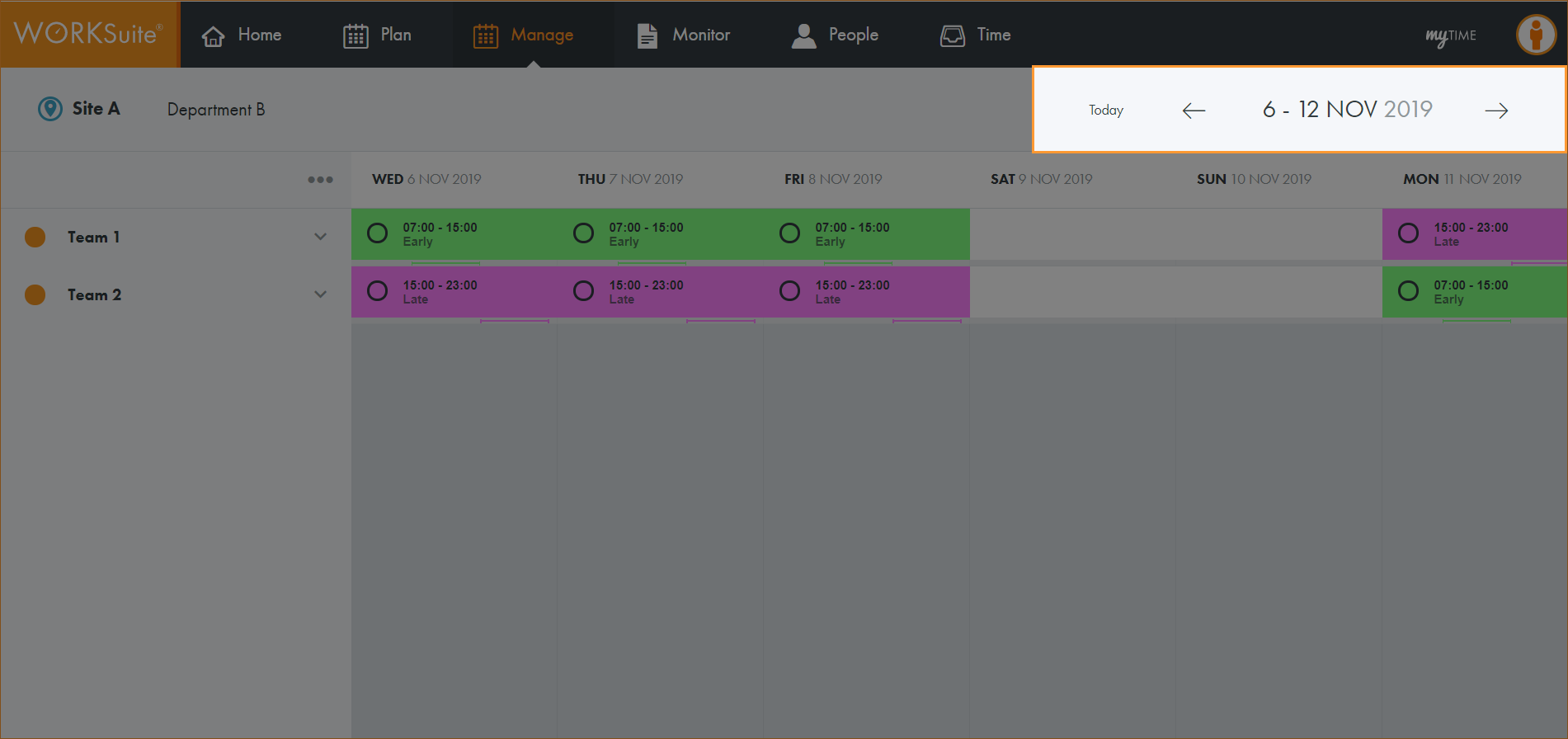
Note: You cannot navigate to a new week until the information for the week which is currently shown is fully loaded. The navigation buttons are temporarily disabled to prevent multiple weeks being loaded at the same time.
All teams published in the selected calendar are listed.
or
Employees are displayed:

 Absence
In the example shown below, Alice Torres has two absences. These are identified by the icon:
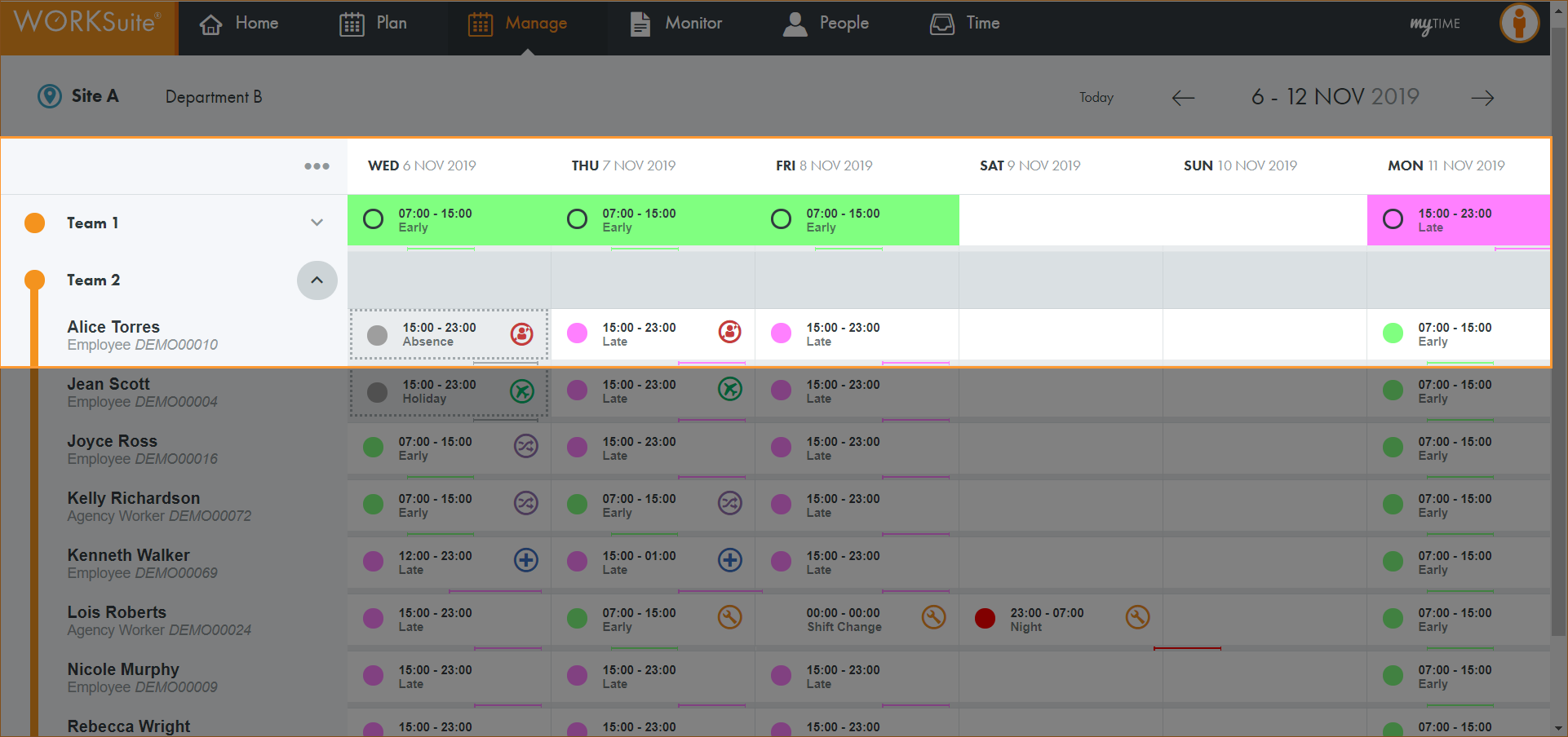
6 November shows a full day absence.
Click on the shift cell to display a popup window:
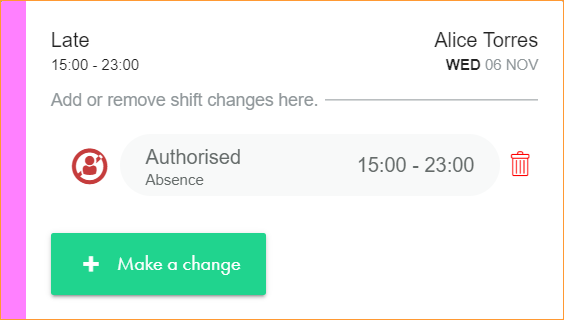
- Alice's original Late shift is displayed in the top left of the window.
- The authorised absence for Alice is shown. In this case, the full day between 15:00 - 23:00.
7 November shows a part day absence.
Click on the shift cell to display a popup window:
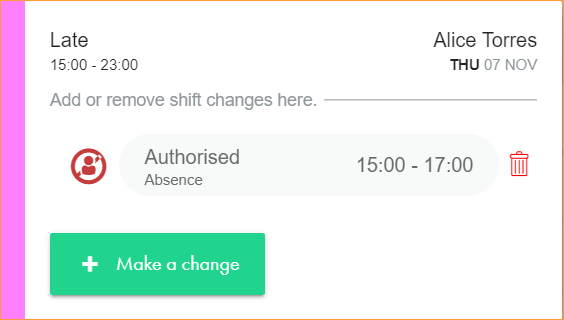
- Alice's original Late shift is displayed in the top left of the window.
- The authorised absence for Alice is shown. In this case, the part day between 15:00 - 17:00.
 Holiday
In the example shown below, Jean Scott has two holiday days. These are identified by the icon:
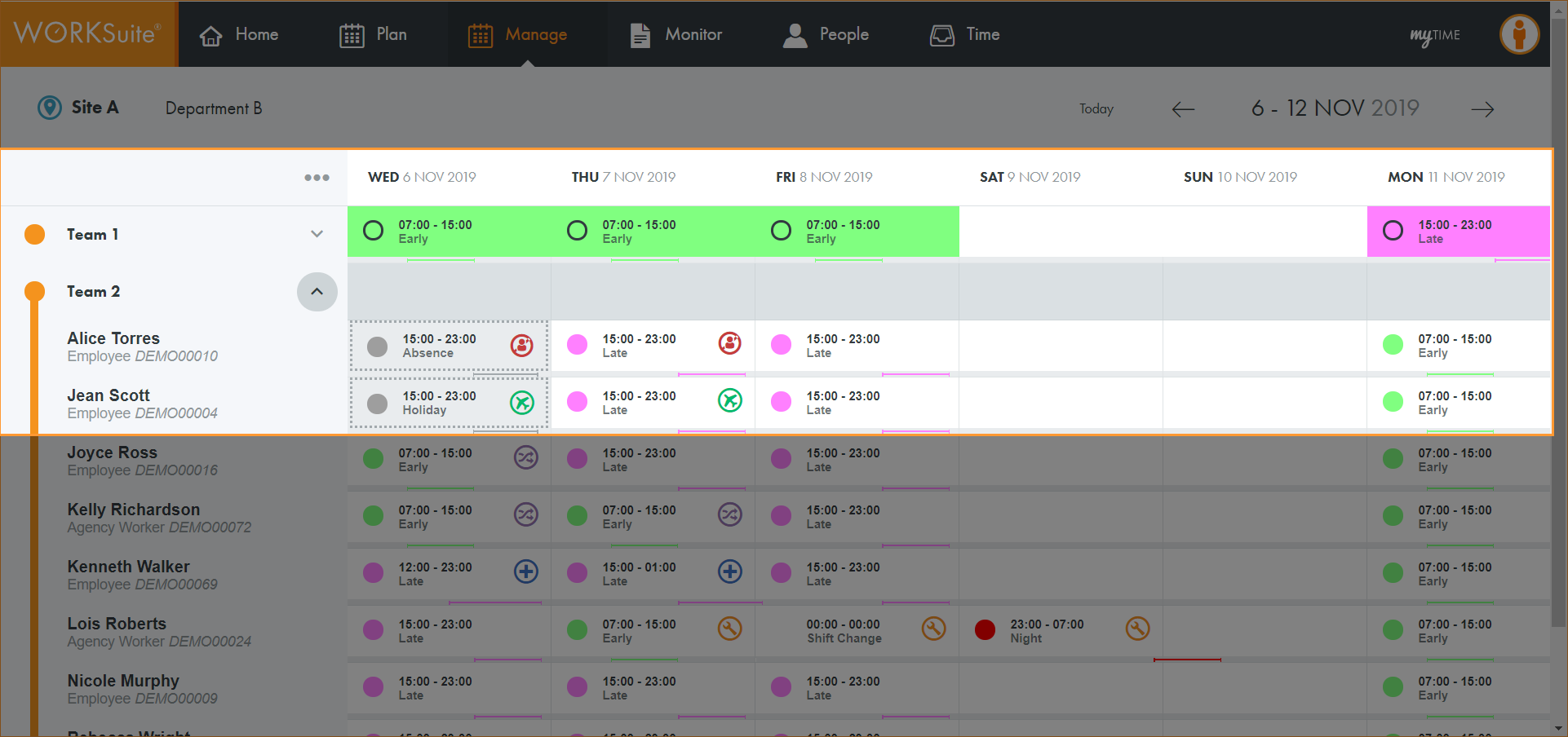
6 November shows a full day holiday.
Click on the shift cell to display a popup window:
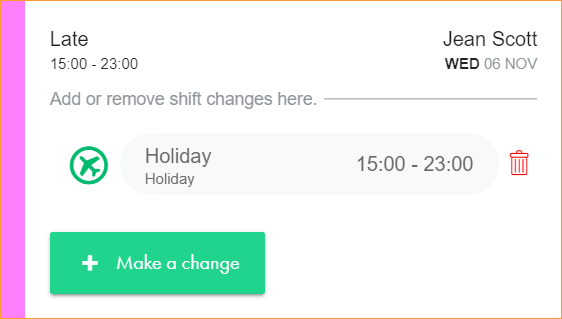
- Tammy's original Late shift is displayed in the top left of the window.
- The holiday for Tammy is shown. In this case, the full day between 15:00 - 23:00.
7 November shows a part day holiday.
Click on the shift cell to display a popup window:
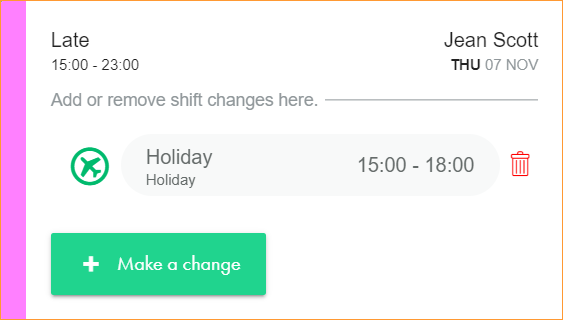
- Jean's original Late shift is displayed in the top left of the window.
- The holiday for Jean is shown. In this case, the part day between 15:00 - 18:00.
 Shift Swap
Shift swaps can be either:
- Single day.
- Two day.
or
Single day shift swap
In the example shown below, Phillip Stewart and Joyce Ross are swapping shifts. These are identified by the icon:
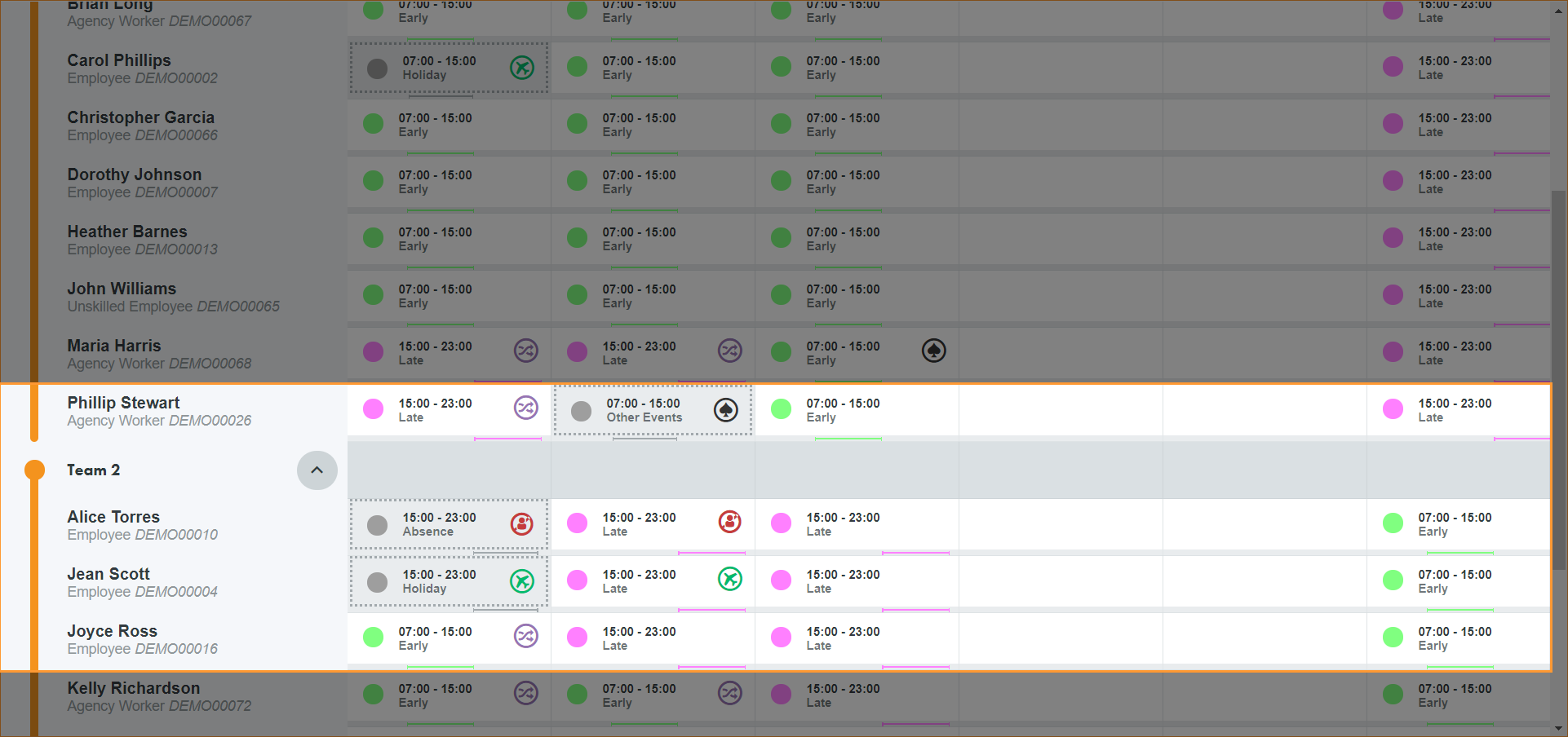
6 November shows a shift swap for Joyce Ross.
Click on the shift cell to display a popup window:
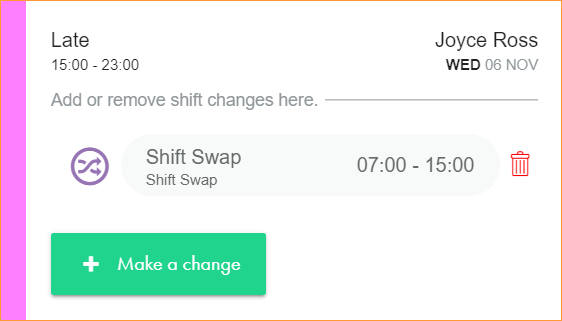
- Joyce's original Late shift is displayed in the top left of the window.
- The shift swap for Joyce is shown. In this case, the Early shift between 07:00 - 15:00.
6 November shows a shift swap for Phillip Stewart.
Click on the shift cell to display a popup window:
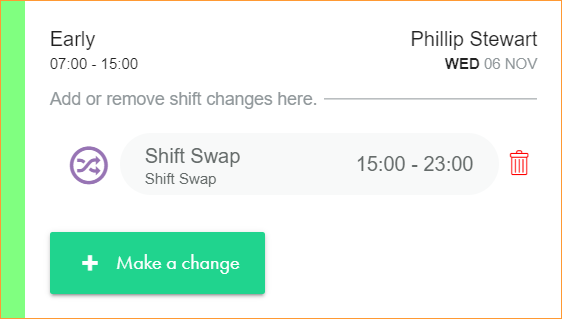
- Phillip's original Early shift is displayed in the top left of the window.
- The shift swap for Phillip is shown. In this case, the Late shift between 15:00 - 23:00.
Two day shift swap
In the example shown below, Maria Harris and Kelly Richardson are swapping shifts over two days. These are identified by the icon:
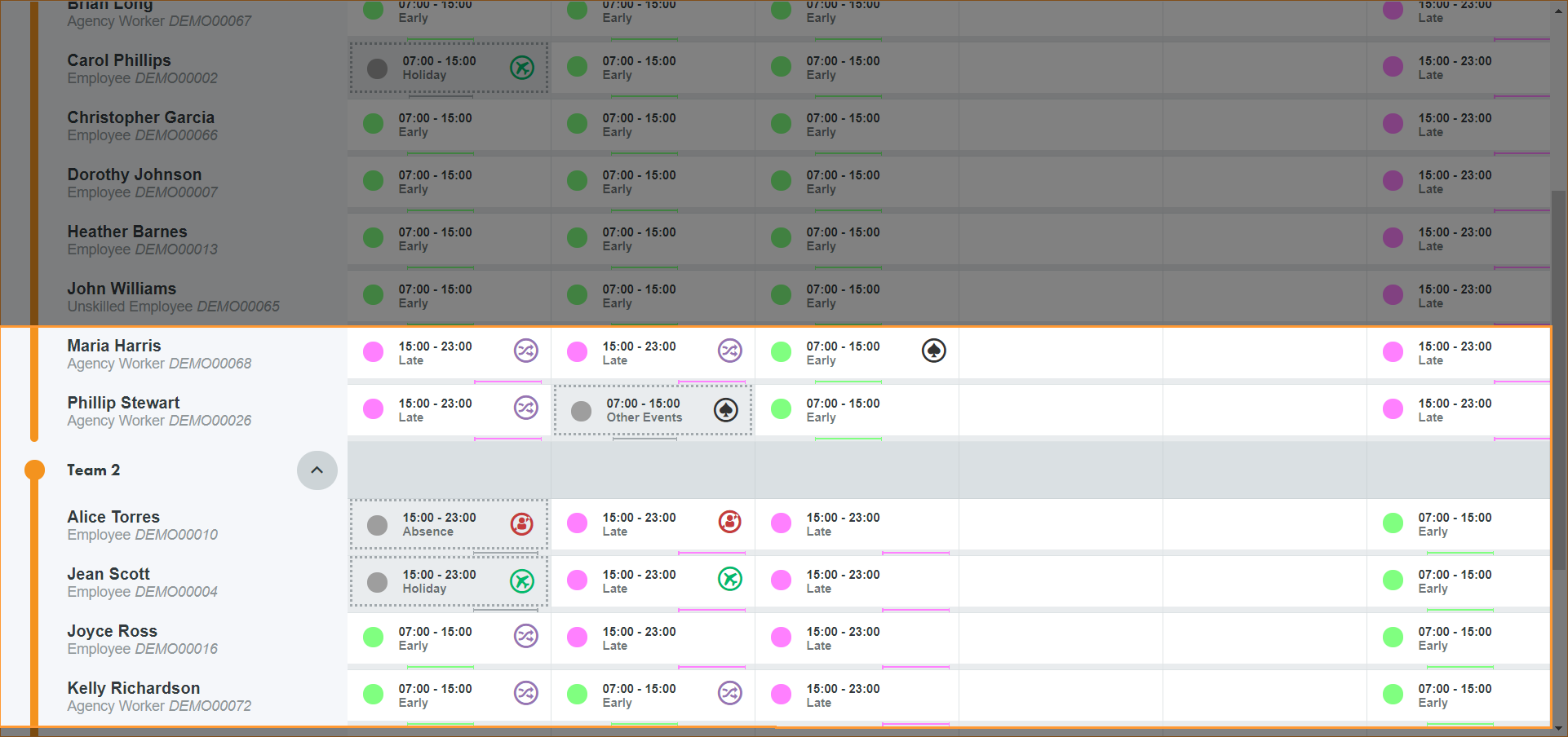
6 November shows a shift swap for Maria Harris.
Click on the shift cell to display a popup window:
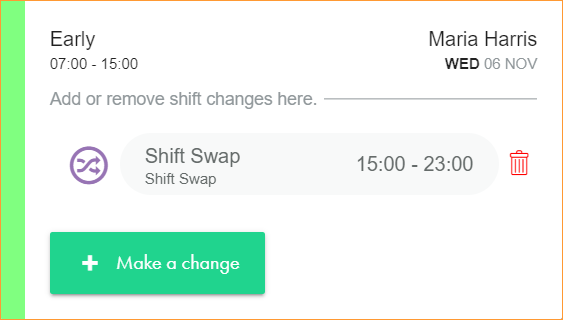
- Maria's original Early shift is displayed in the top left of the window.
- The shift swap for Maria is shown. In this case, the Late shift between 15:00 - 23:00. If Maria was swapping with someone's rest day, no shift would be displayed here.
6 November shows a shift swap for Kelly Richardson.
Click on the shift cell to display a popup window:
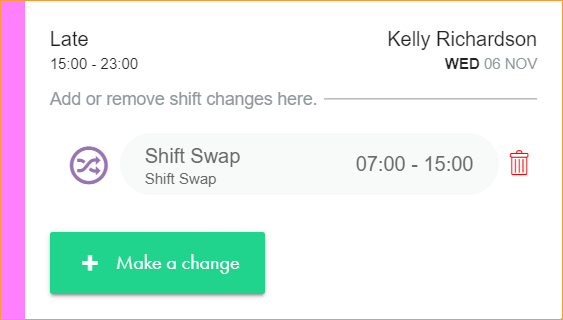
- Kelly's original Late shift is displayed in the top left of the window. If Kelly was swapping her rest day for a shift, no shift would be displayed in the top left.
- The shift swap for Kelly is shown. In this case, the Early shift between 07:00 - 15:00.
7 November shows a shift swap for Maria Harris.
Click on the shift cell to display a popup window:
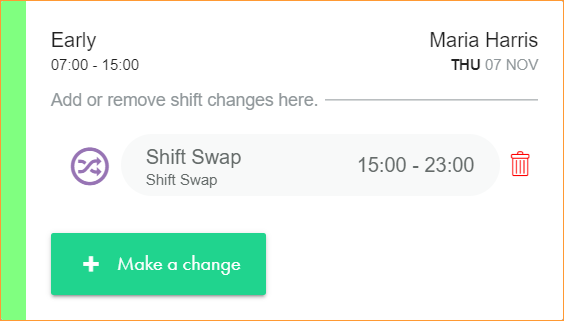
- Maria's original Early shift is displayed in the top left of the window. If Maria was swapping her rest day for a shift, no shift would be displayed in the top left.
- The shift swap for Maria is shown. In this case, the Late shift between 15:00 - 23:00.
7 December shows a shift swap for Kelly Richardson.
Click on the shift cell to display a popup window:
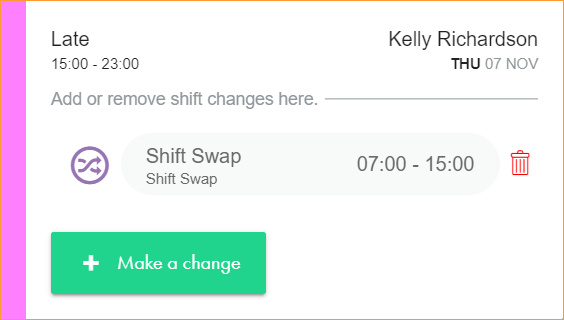
- Kelly's original Late shift is displayed in the top left of the window.
- The shift swap for Kelly is shown. In this case, the Early shift between 07:00 - 15:00. If Kelly was swapping with someone's rest day, no shift would be displayed here.
 Additional Hours
In the example shown below, Kenneth Walker has two shifts with additional hours. These are identified by the icon:
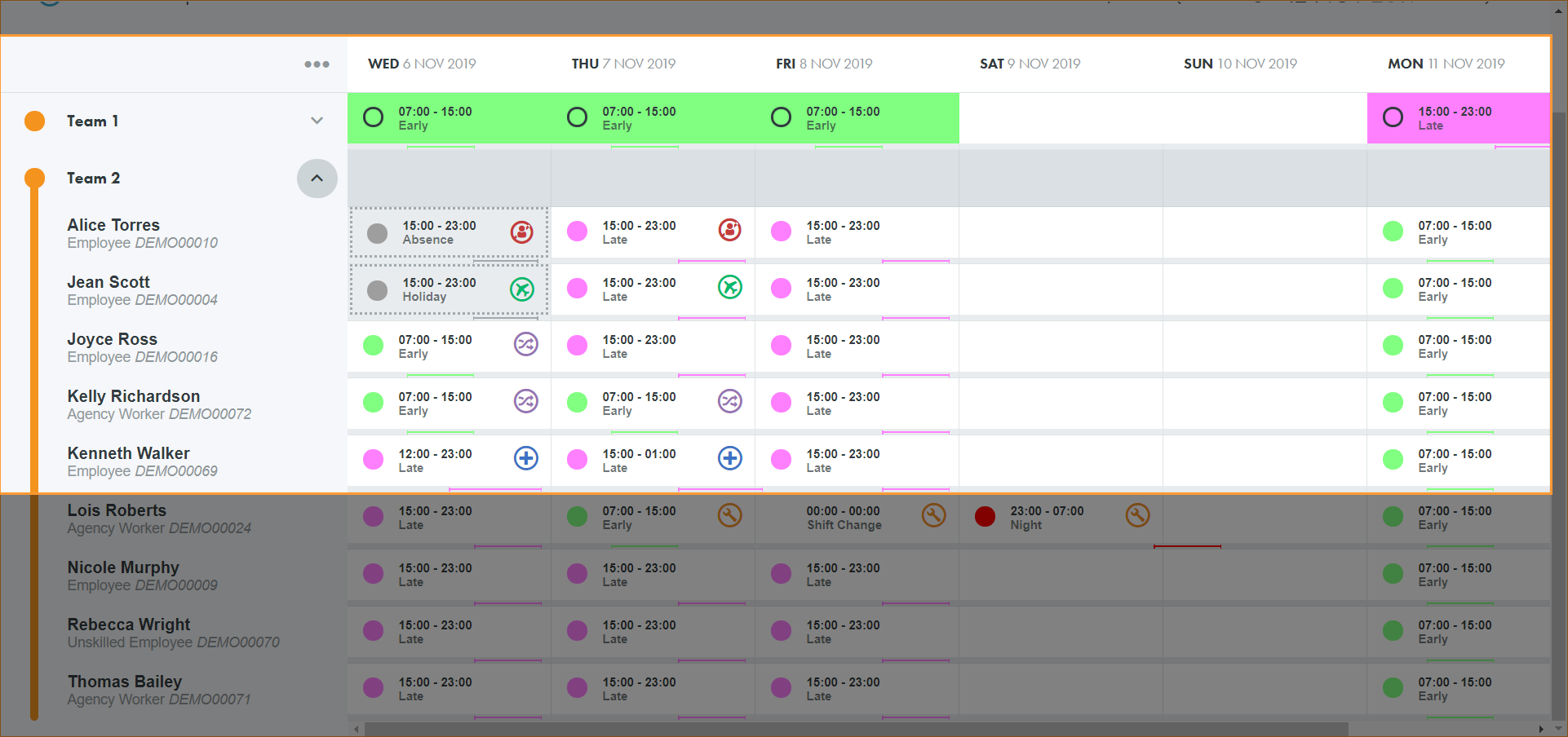
6 November additional hours at the start of the shift.
Click on the shift cell to display a popup window:
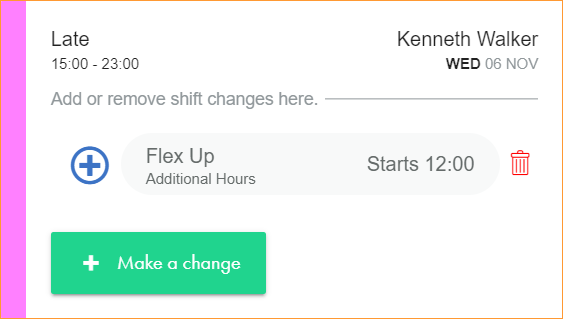
- Kenneth's original Late shift is displayed in the top left of the window.
- The additional hours for Kenneth are shown. In this case, the variance reason is Flex Up and Kenneth starts his shift at 12:00 instead of 15:00.
7 November shows additional hours at the end of the shift.
Click on the shift cell to display a popup window:
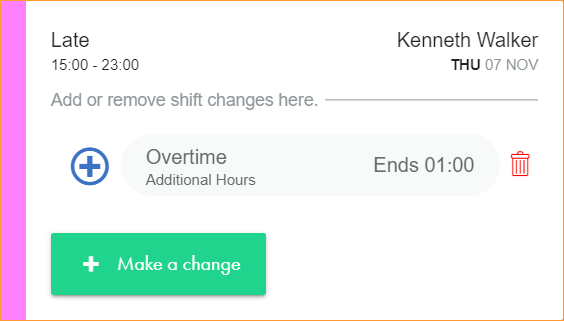
- Kenneth's original Late shift is displayed in the top left of the window.
- The additional hours for Kenneth are shown. In this case, the variance reason is Overtime and Kenneth ends his shift at 01:00 instead of 23:00.
 Shift Change
In the example shown below, Lois Roberts has three shift changes. These are identified by the icon:
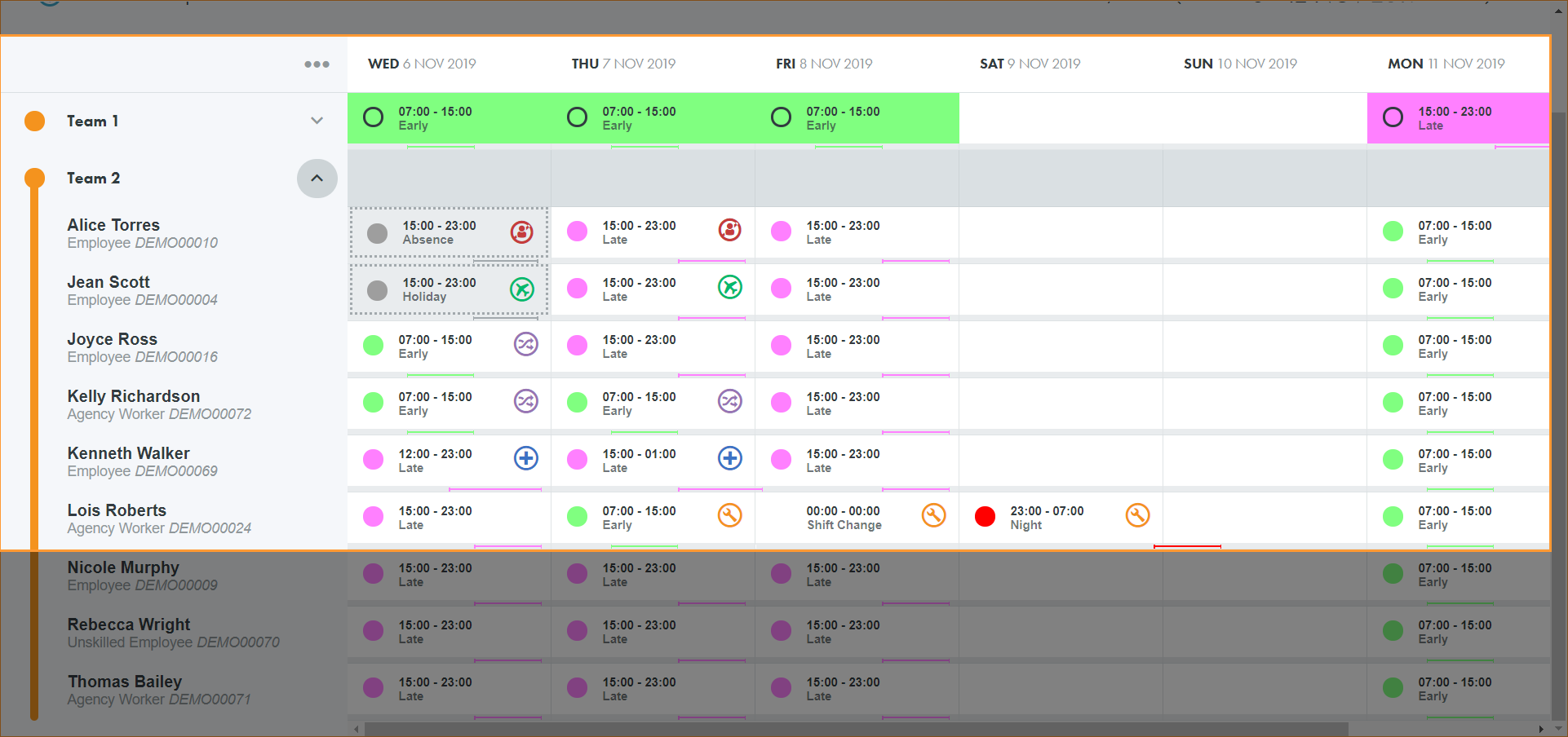
7 November shows a shift change to a different shift.
Click on the shift cell to display a popup window:
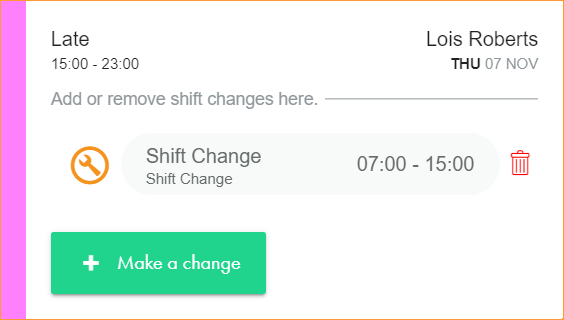
- Lois's original Late shift is displayed in the top left of the window
- The newly scheduled shift for Lois shown. In this case, the Early shift from 07:00 - 15:00.
8 November shows a shift change to a rest day.
Click on the shift cell to display a popup window:
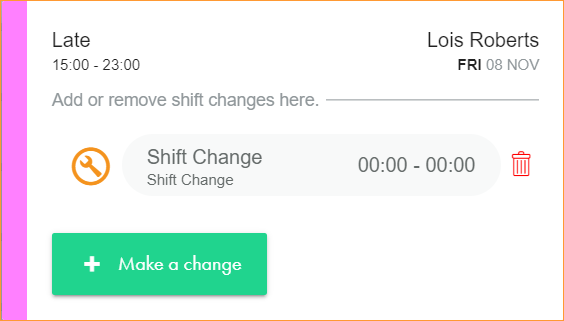
- Lois's original Late shift is displayed in the top left of the window.
- No shift is displayed in the centre of the window. Lois has not been scheduled to work.
9 November shows a shift change from a rest day to a working day.
Click on the shift cell to display a popup window:
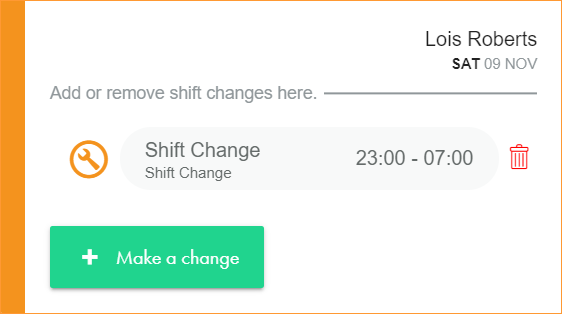
- No shift is displayed in the top left of the window. This indicates that Lois is not scheduled to work; it is her rest day.
- The newly scheduled shift for Lois shown. In this case, the Night shift from 23:00 - 07:00.
 Other Event
In the example shown below, two employees in Team 1 have other events. These are identified by the icon:
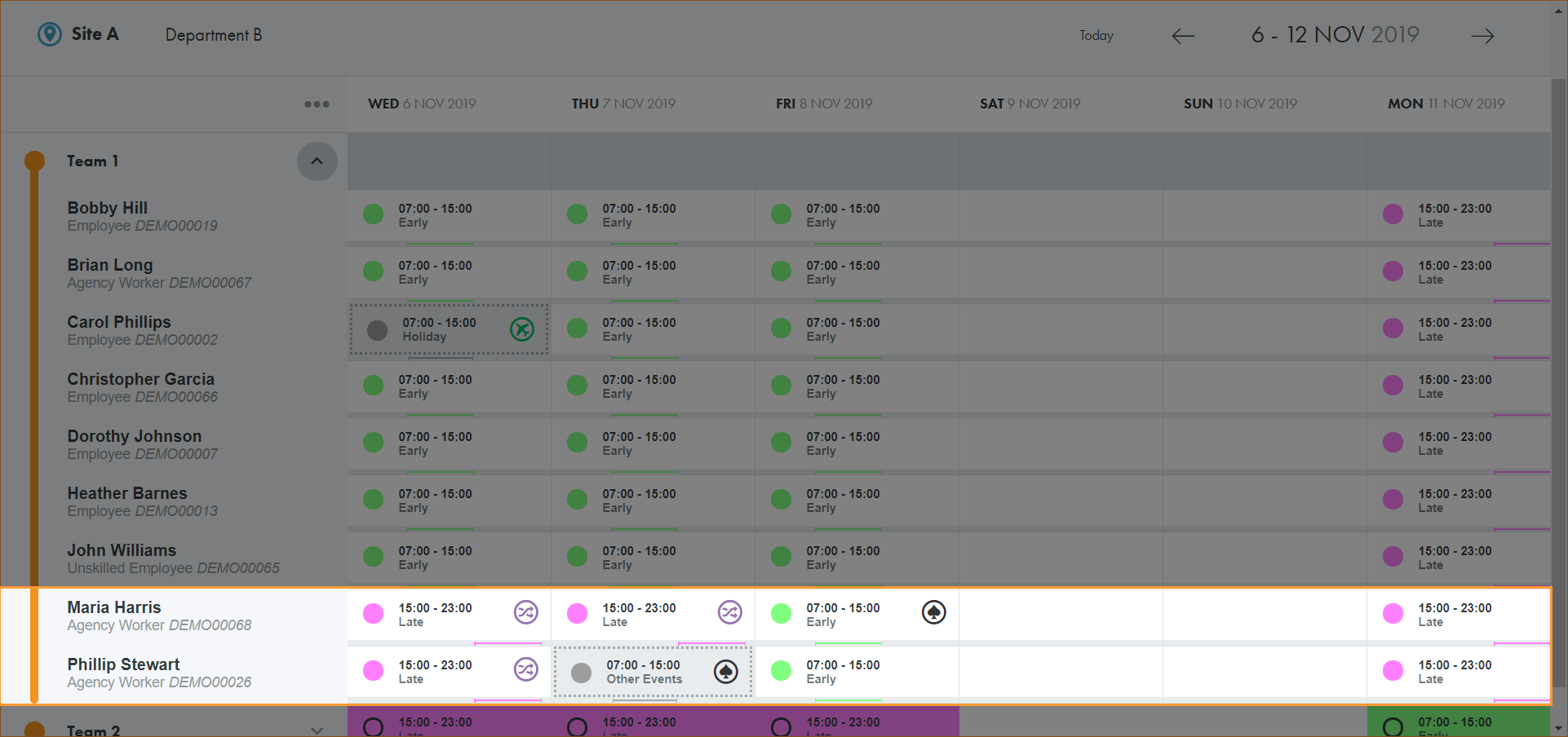
7 November shows a full day of other event absence for Phillip Stewart.
Click on the shift cell to display a popup window:
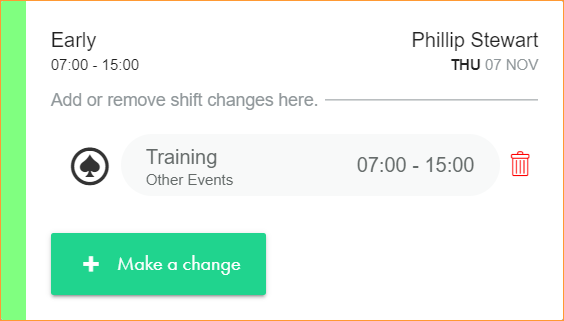
- Phillip's original Early shift is displayed in the top left of the window.
- The other event for Phillip is shown. In this case, the full day Training between 07:00 - 15:00.
8 November shows a part day of other event absence for Maria Harris.
Click on the shift cell to display a popup window:
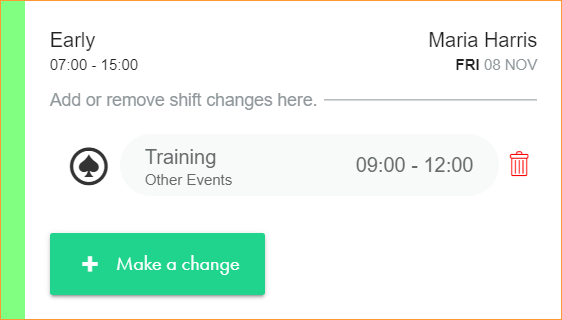
- Maria's original Early shift is displayed in the top left of the window.
- The other event for Maria is shown. In this case, the part day Training between 09:00 - 12:00.