Hide unscheduled employees
Use the Manage tab to hide any employees who are not scheduled to work in current shifts. This is useful for decluttering your screen or hiding floating employees.
Note: Only published shifts are displayed in the Manage tab.
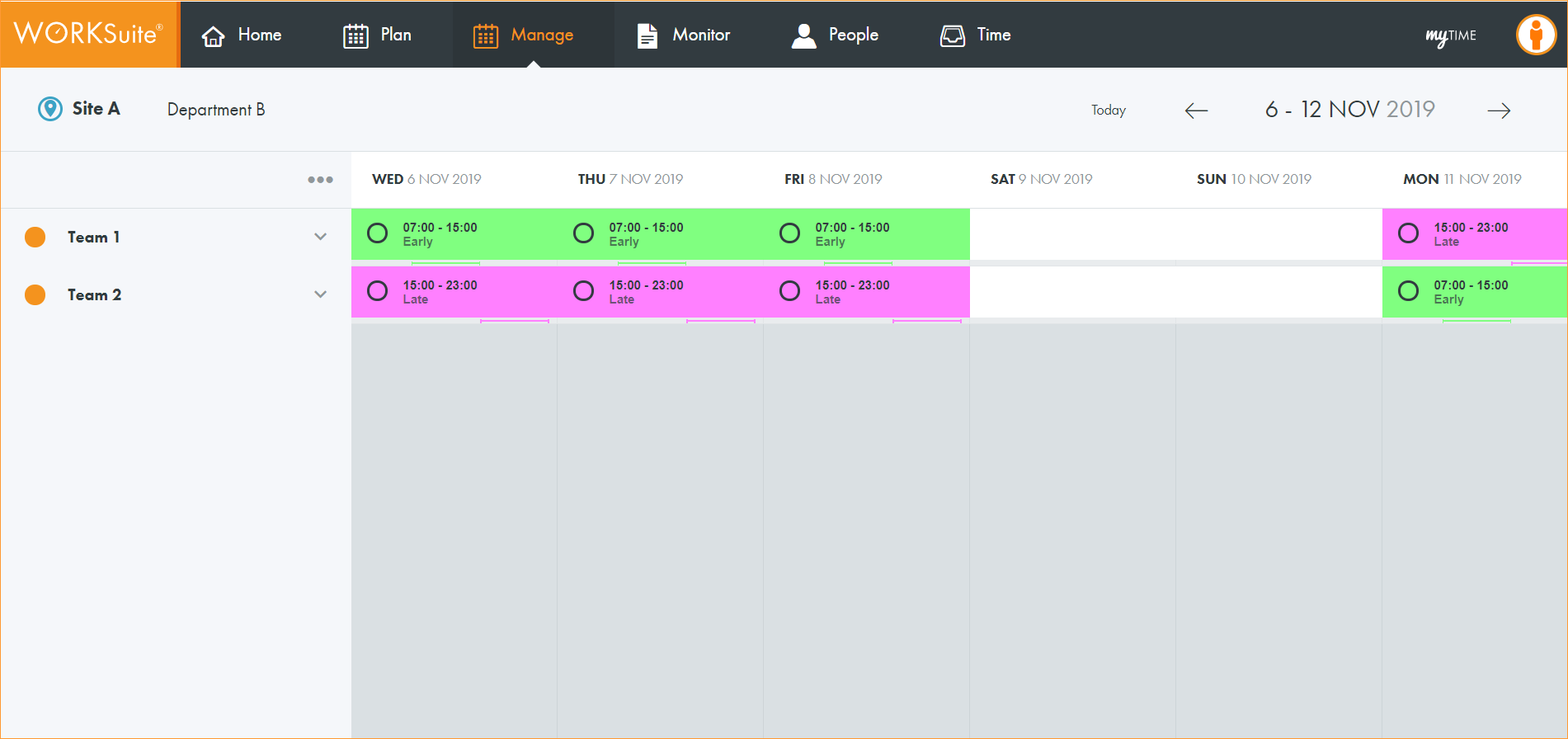
- Open the Manage tab:
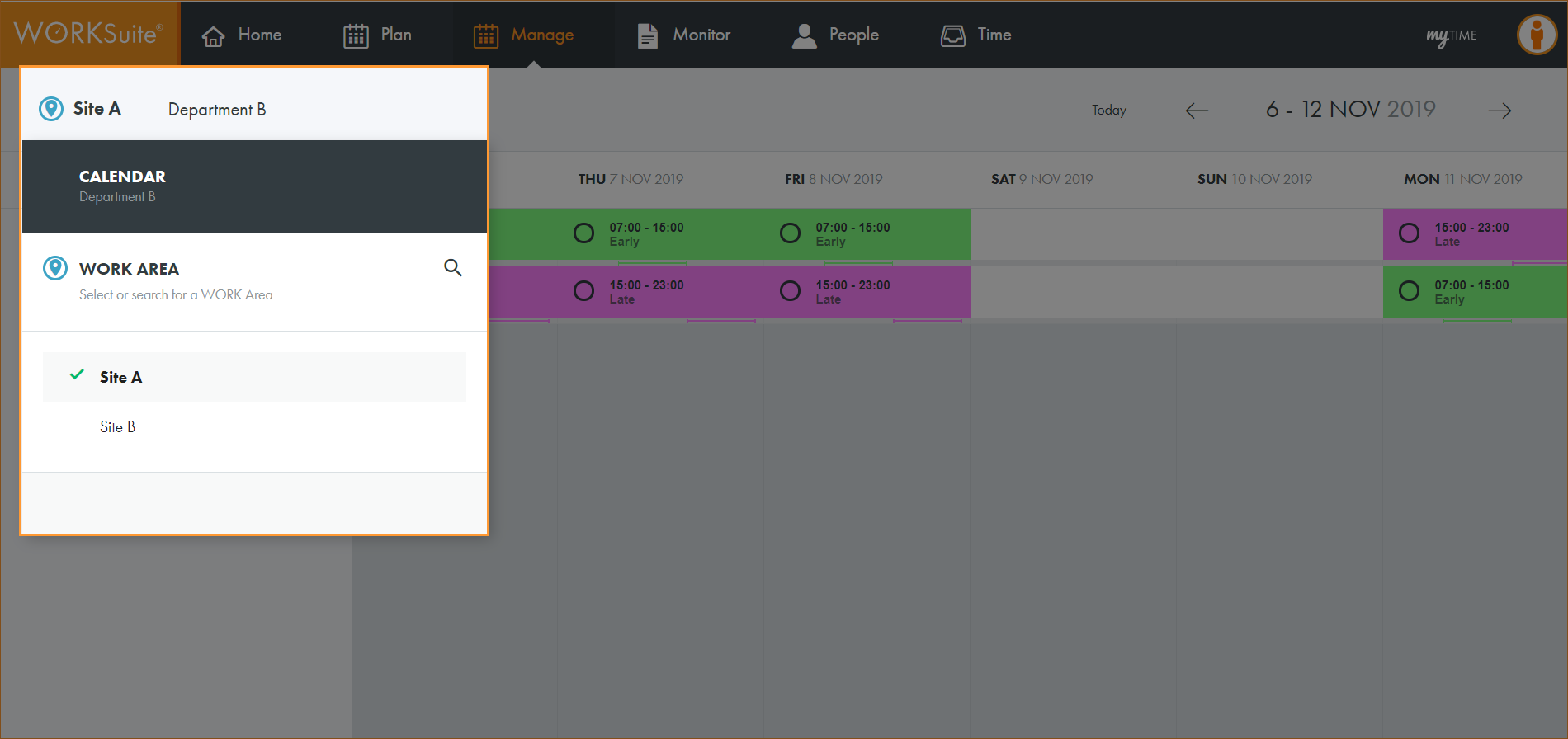
- Click
 and select the work area that you want to work with:
 - By default, your previously selected work area is preselected.
- If you only have access to a single calendar, this is pre-selected when the screen loads. There is no need to select a calendar.
- Select the calendar that you want to work with:
- Select Today or use the date navigation tools to select the dates that you want to view:
- Click ... in the top left of the header and select Show Resources.
- Click ... in the top left of the header and select Hide Unscheduled Employees.
Note:
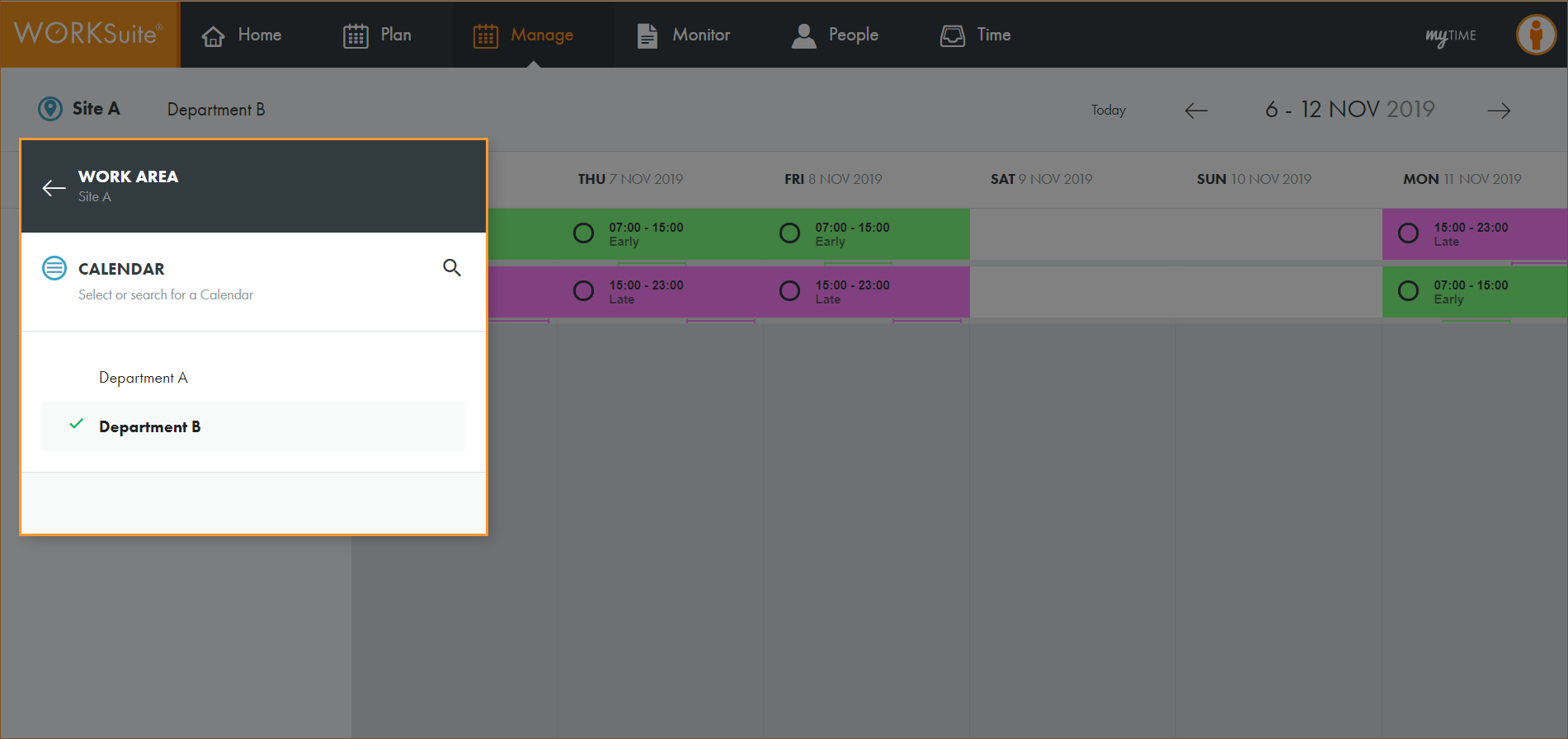
Note: By default, your previously selected calendar is preselected.
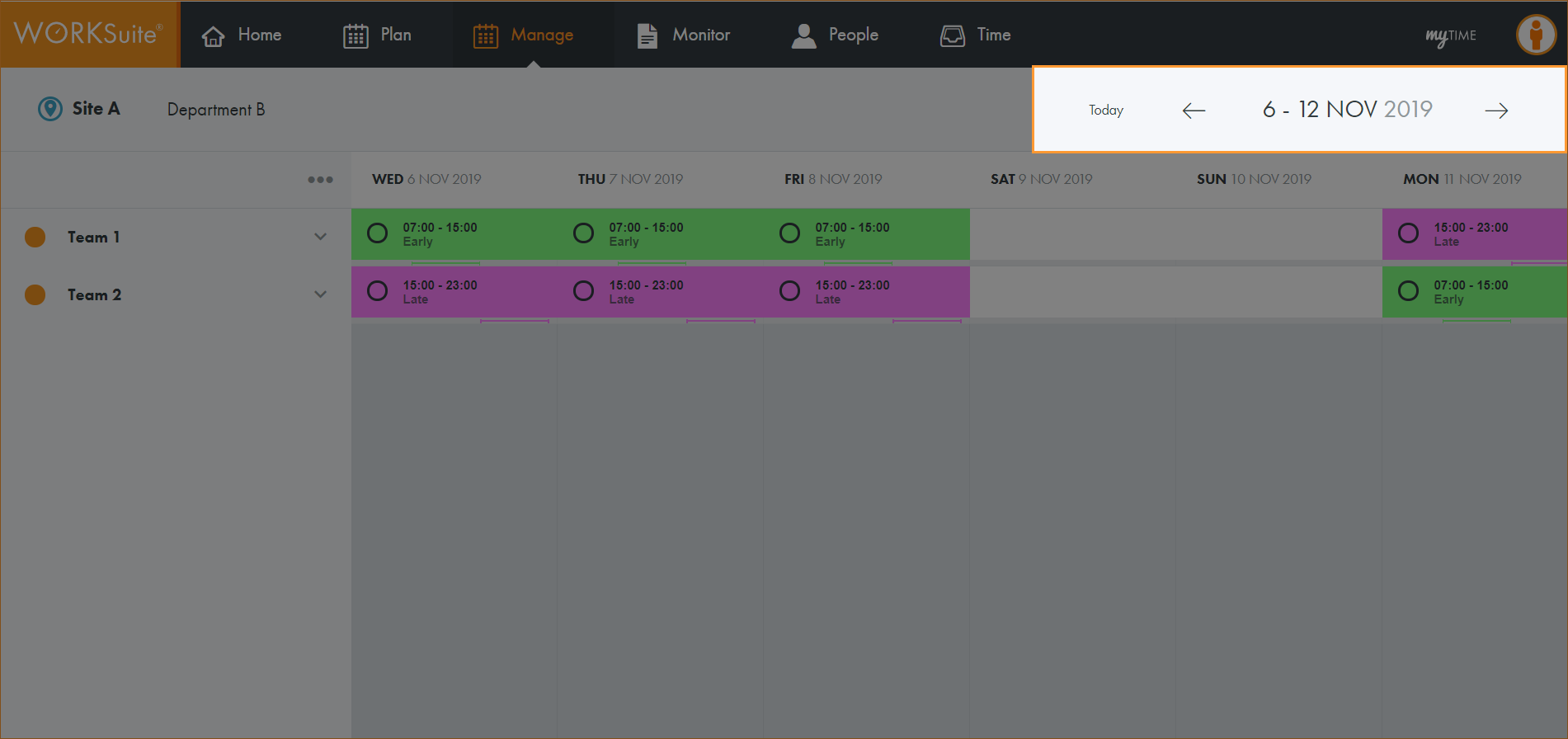
Note: You cannot navigate to a new week until the information for the week which is currently shown is fully loaded. The navigation buttons are temporarily disabled to prevent multiple weeks being loaded at the same time.
All teams published in the selected calendar are listed.
All employees are listed.
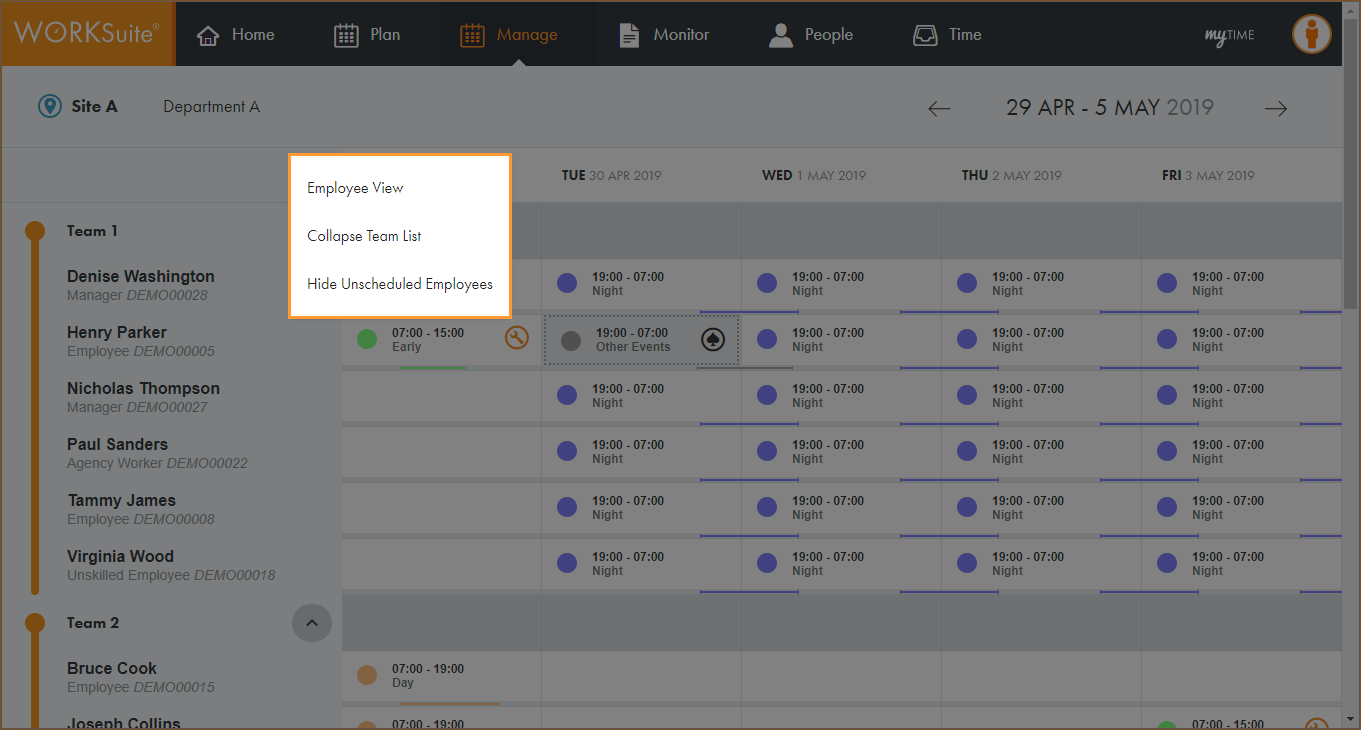
Any employees who are not scheduled to work for the dates shown are hidden from view.