Tasks Management configuration
To configure Tasks Management:
- Open the Plan tab.
- Select a work area or add a new work area. Each shift is held in a work area and a calendar. For example, work areas could be ‘London’, ‘Manchester’ and ‘Birmingham’.
- Select a calendar or add a new calendar. Each calendar holds team shifts made up of employees. Within ‘Manchester’, list calendars for ‘Headquarters’ and ‘Factory’.
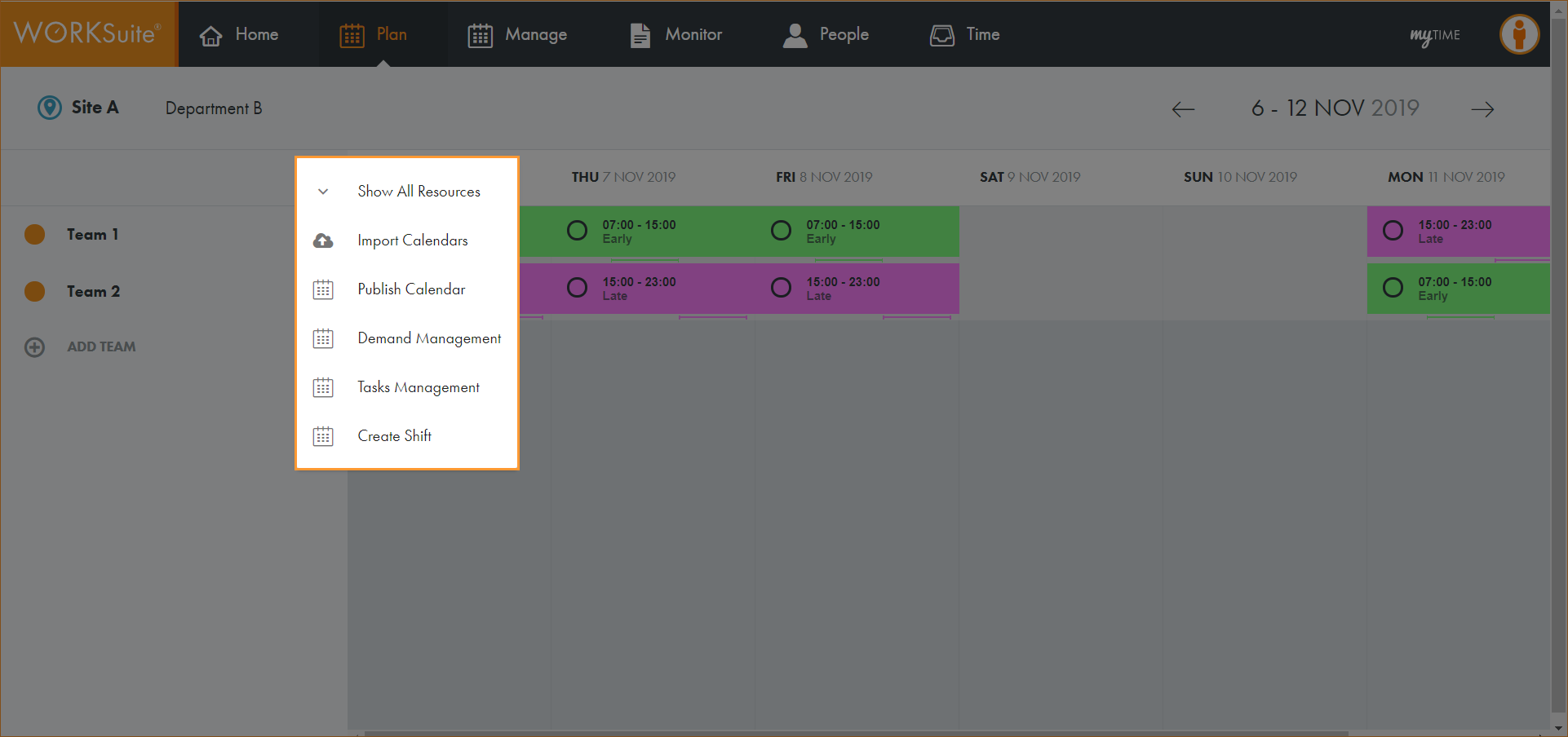
- Click … in the calendar header:
- Select Tasks Management.
- Choose to:
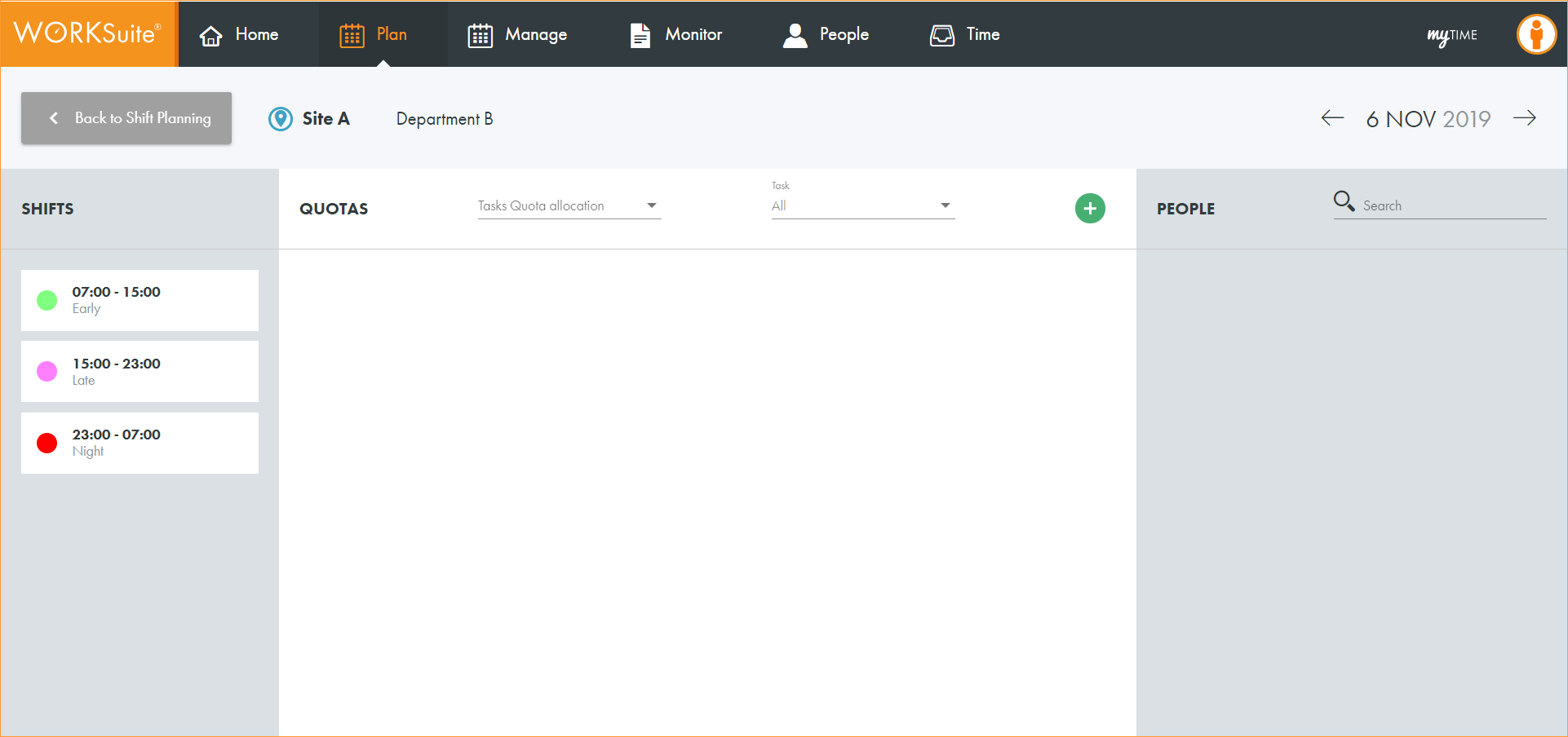
The Tasks Management screen is displayed:
 Add a project.
- Click
 .
.
A popup window is displayed:
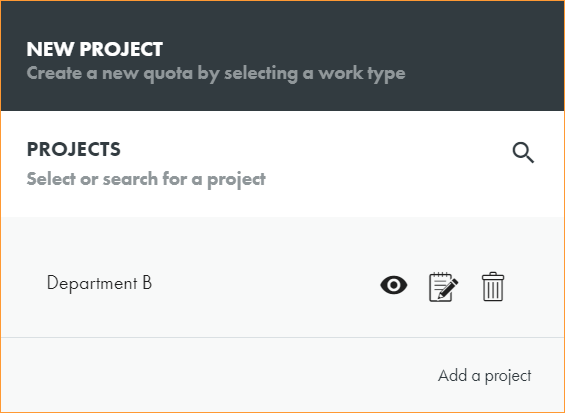
- Click Add a project in the bottom right of the window.
The Add a new Project popup window is displayed:
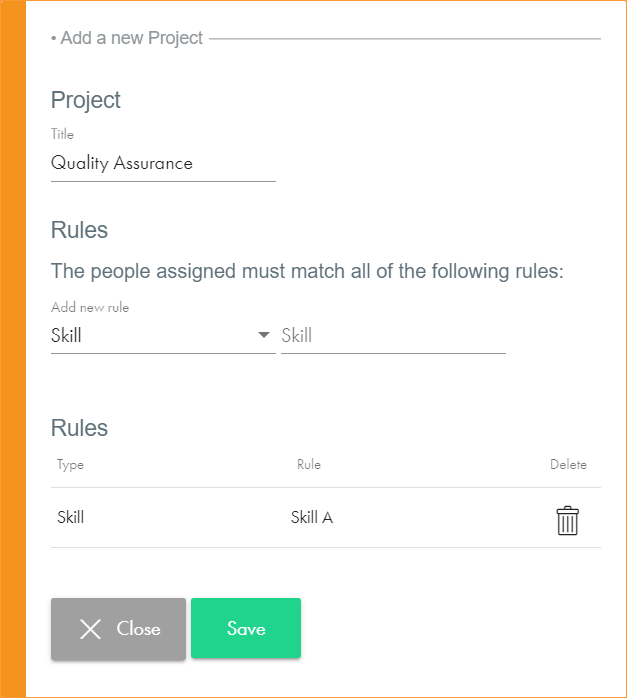
- Enter a clear and concise Title for the project.
- Add a Rule for the project. Filter rules using the left hand dropdown list and then select a rule to apply from the list on the right.
Rules are listed at the bottom of the window.
- Apply as many rules as you require Click
 to remove a rule that is not required.
 - Click Save.
- Add a Rule for the project. Filter rules using the left hand dropdown list and then select a rule to apply from the list on the right.
- You can now add tasks to the project.
Add a task.
Once projects have been set up, you can add tasks.
- Click .
The project window is displayed:
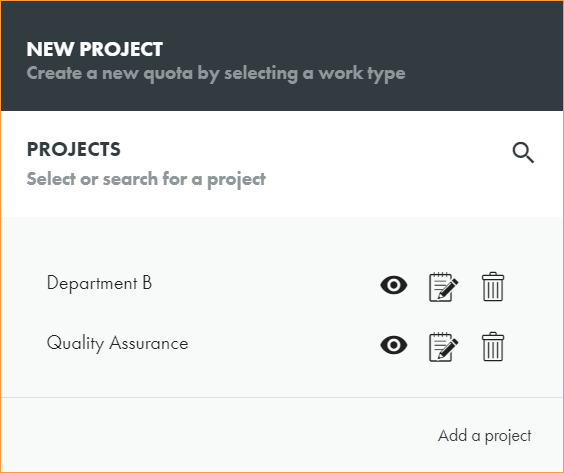
- Click
 in the project that you want to work with.
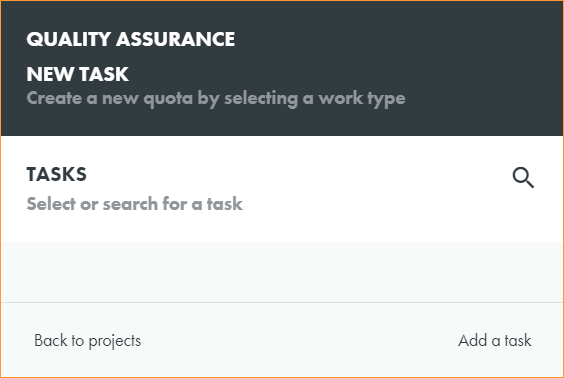
 - Click Add a task in the bottom right of the window.
The task window is displayed:
The Add a new Task popup window is displayed:
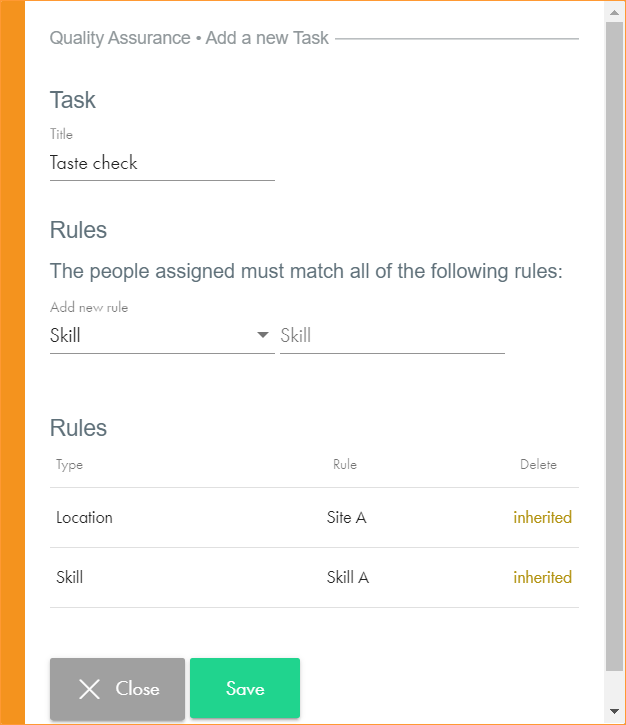
- Enter a clear and concise Title for the task.
- Add a Rule for the task. Filter rules using the left hand dropdown list and then select a rule to apply from the list on the right.
Rules are listed at the bottom of the window. Rules inherited from the project are also listed.
- Apply as many rules as you require Click to remove a rule that is not required.
- Click Save.
- You can now add a work type to the task.
Add a work type.
Once tasks have been set up, you can add work types.
- Click .
The project window is displayed:
- Click in the project that you want to work with.
- Click in the task that you want to work with.
The task window is displayed:
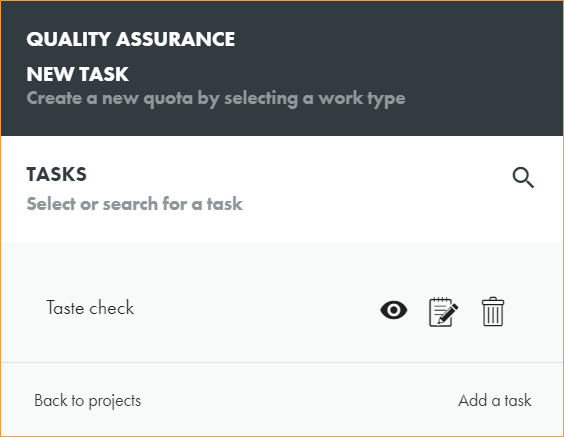
The work type window is displayed::
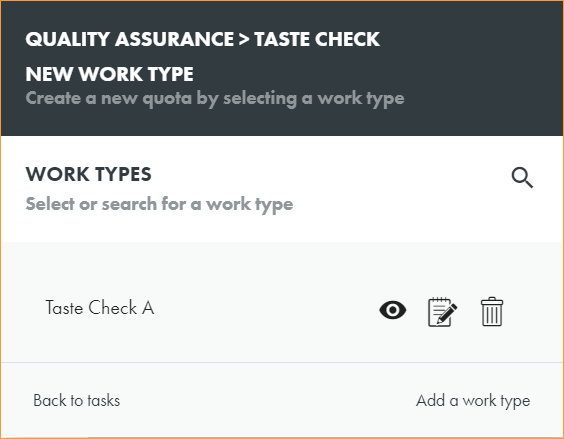
- Click Add a work type in the bottom right of the window.
The Add a new Work Type popup window is displayed:
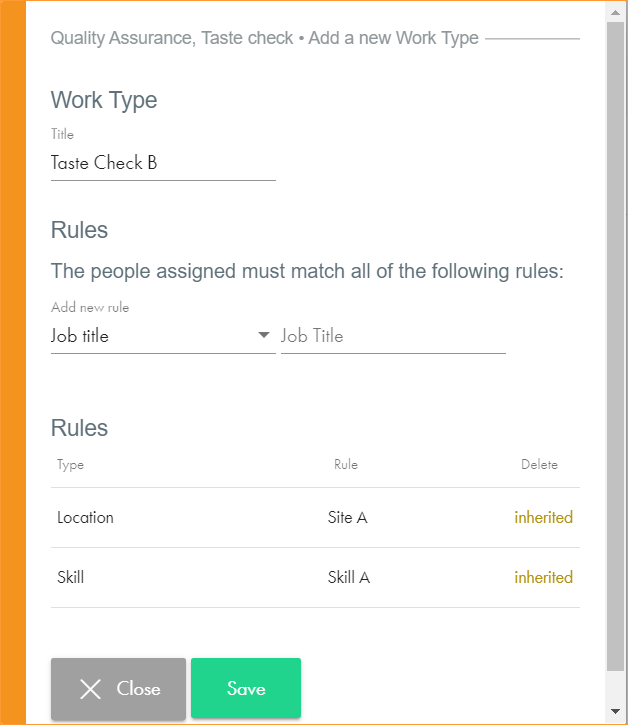
- Enter a clear and concise Title for the work type.
- Add a Rule for the work type. Filter rules using the left hand dropdown list and then select a rule to apply from the list on the right.
Rules are listed at the bottom of the window. Rules inherited from the project and task are also listed.
- Apply as many rules as you require Click to remove a rule that is not required.
- Click Save.
- You can now allocate shifts.