Publish an individual resource calendar
Use the Plan tab to publish assigned shifts in an individual employee's calendar. This is useful if changes have to be made to individual resources in a team, for example when adding a new starter.
Calendar shifts that you plan are not live until you choose to publish them. Published calendar shifts are displayed in the Manage tab.
Note: If you are republishing a calendar, variance data may be lost. Only annual leave for full days or multi days and absences are transferred to republished calendars.
To publish an individual resource calendar:
- Open the Plan tab and click
 to display the area dropdown list:
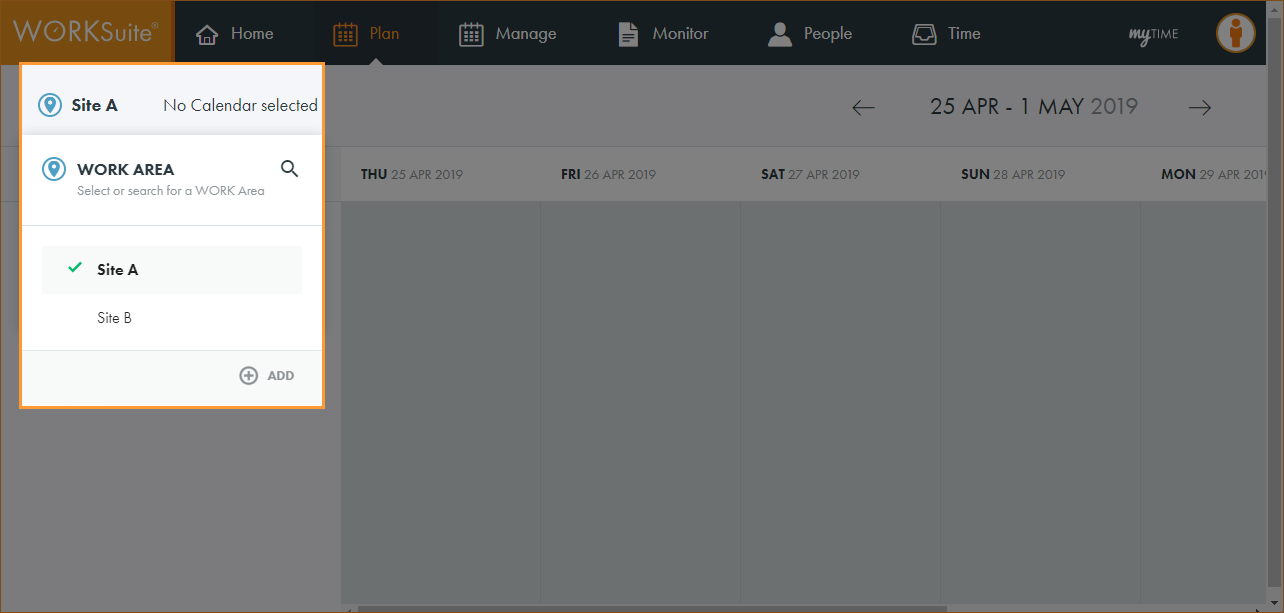
Note: By default, your previously selected work area is preselected.
- Click
 and start typing the name of the area you want to work with.
The list of areas is filtered.
- Click on an area in the list to select it.
The calendar search box is displayed:
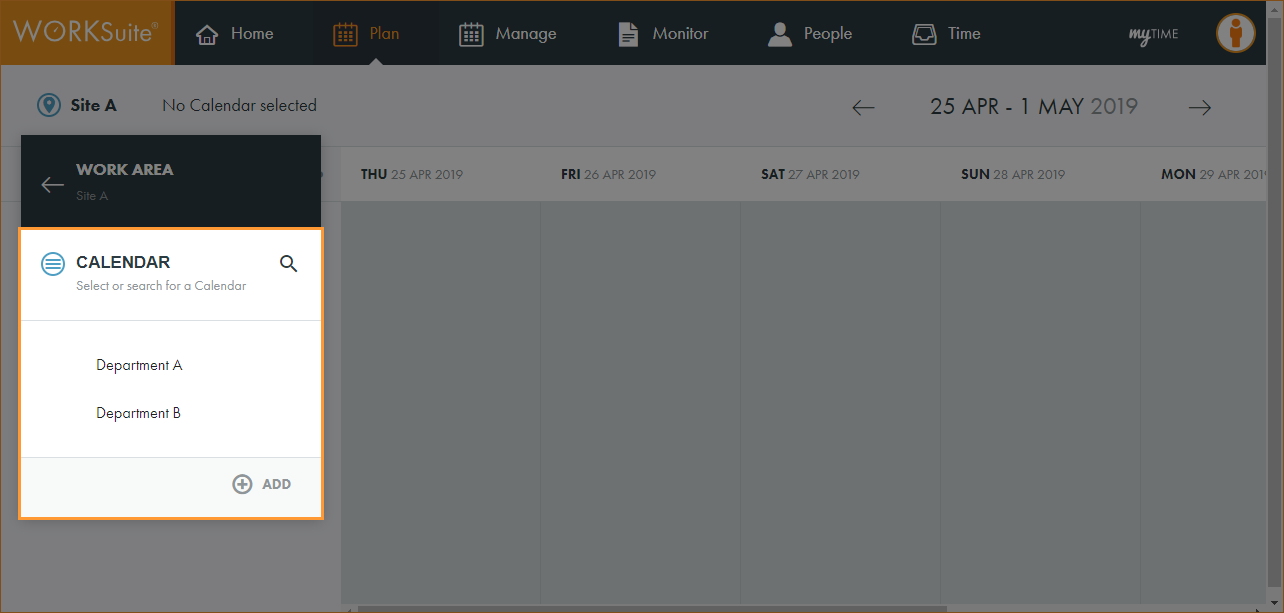
Note: By default, your previously selected calendar is preselected.
- Click and start typing the name of the calendar you want to work with.
The list of calendars is filtered.
- Click on a calendar to select it.
All teams in the calendar are displayed.
- Click … in the team that you want to work with.
- Click Show Resources.
- Click … in the resource that you want to publish.
- Click
 Publish Employee:
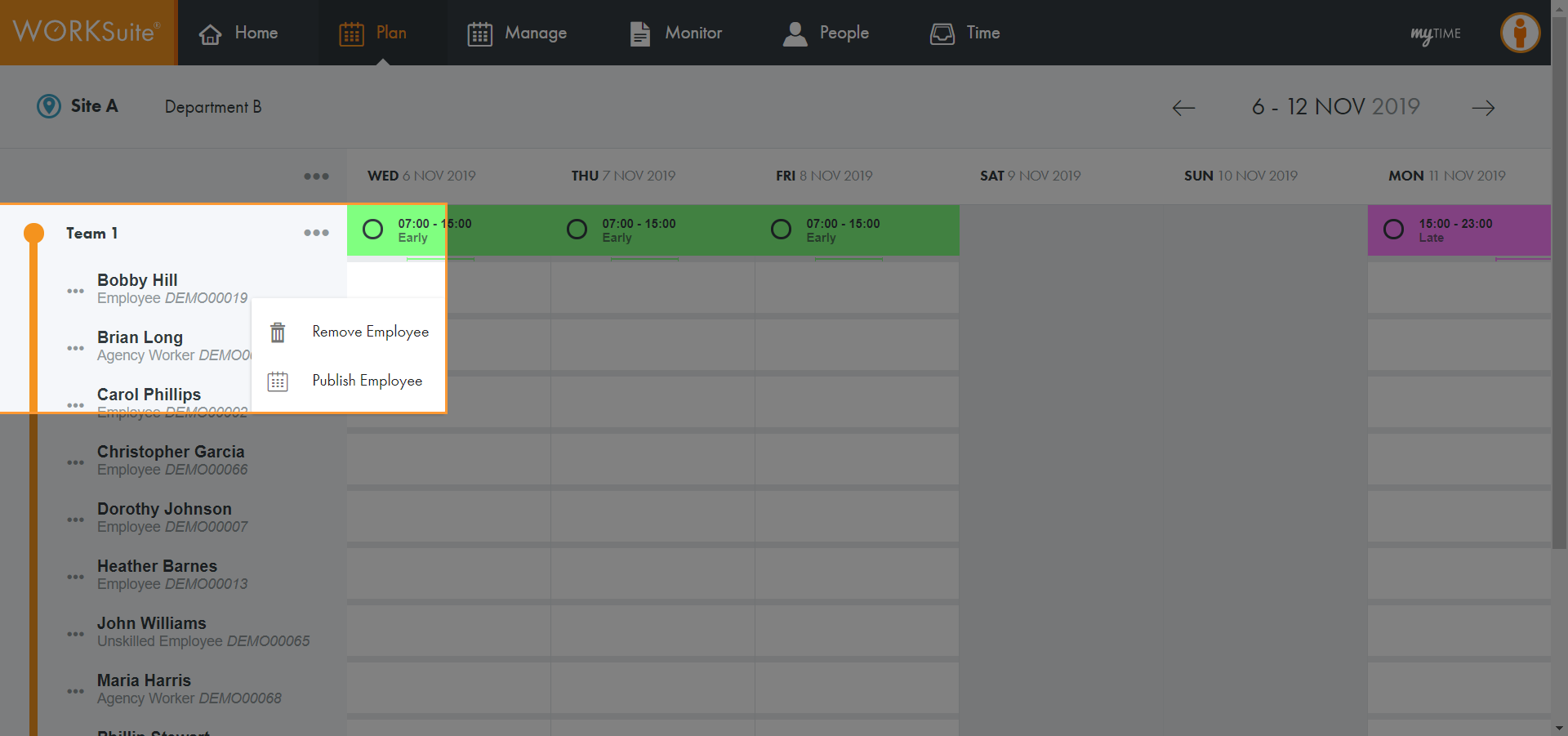
A popup window is displayed:
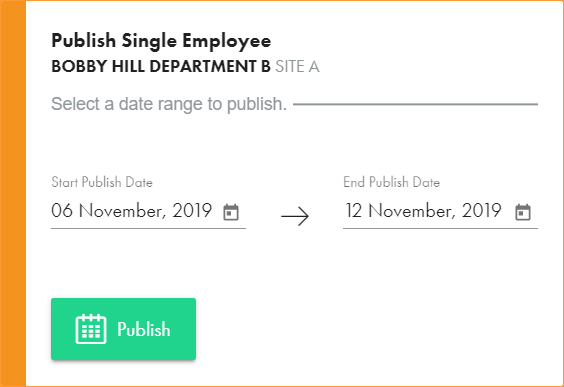
- Click
 and select the dates that you want to publish.
 - Click Publish.
A popup window is displayed to confirm that the calendar shift has been published successfully. Any changes which have been removed are listed:
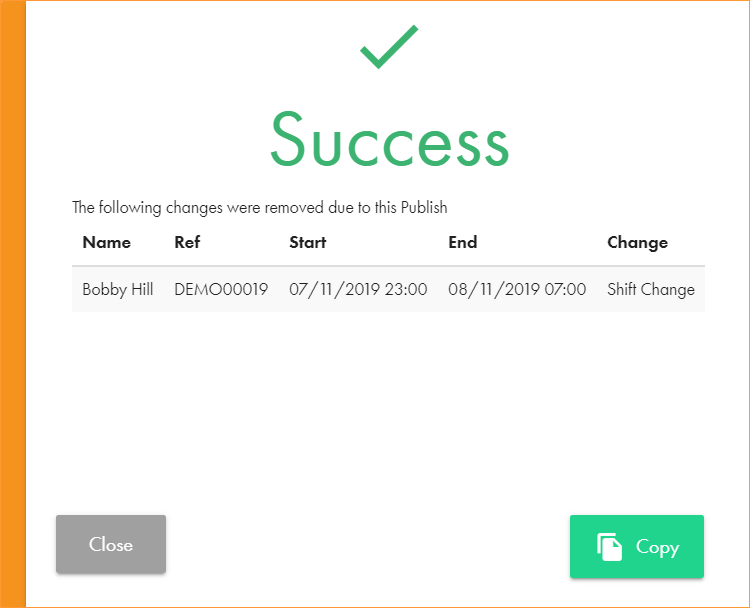
Any existing part day changes or shift swaps/changes are removed as they may not be required in the new shift pattern.
- Choose to Copy the information for future use. Paste into your preferred application, such as Excel.
- Click Publish.
The published calendar shift is displayed in the Manage tab.