Add, edit or delete shifts in a team calendar
Use the Plan tab to manage the shifts in a team calendar. You can add new shifts or edit and delete existing shifts, as required. This is useful for updating shift patterns.
Note: Each team’s shifts are held in a calendar within a work area. For example, calendars could be ‘Headquarters’ and ‘Factory’ in the work area of ‘Manchester’. Each calendar holds teams made up of resources (employees).
To add, edit or delete a shift:
- Open the Plan tab.
- Click
 and select the work area that you want to work with:
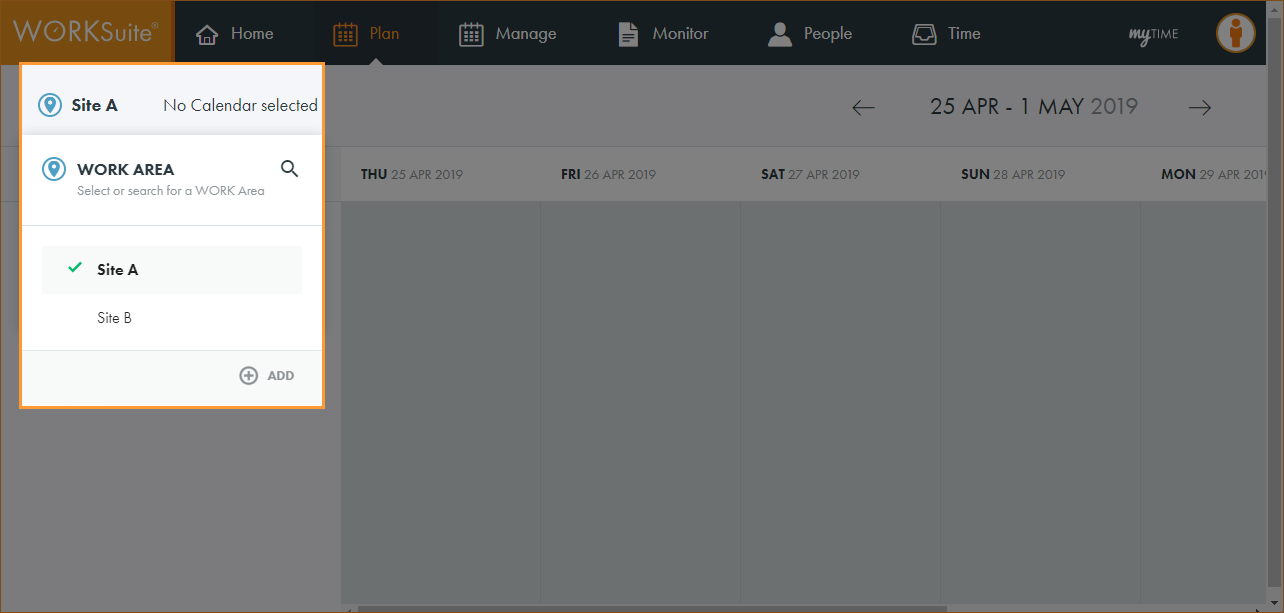
Note: By default, your previously selected work area is preselected.
- Click No Calendar selected and select the calendar that you want to work with:
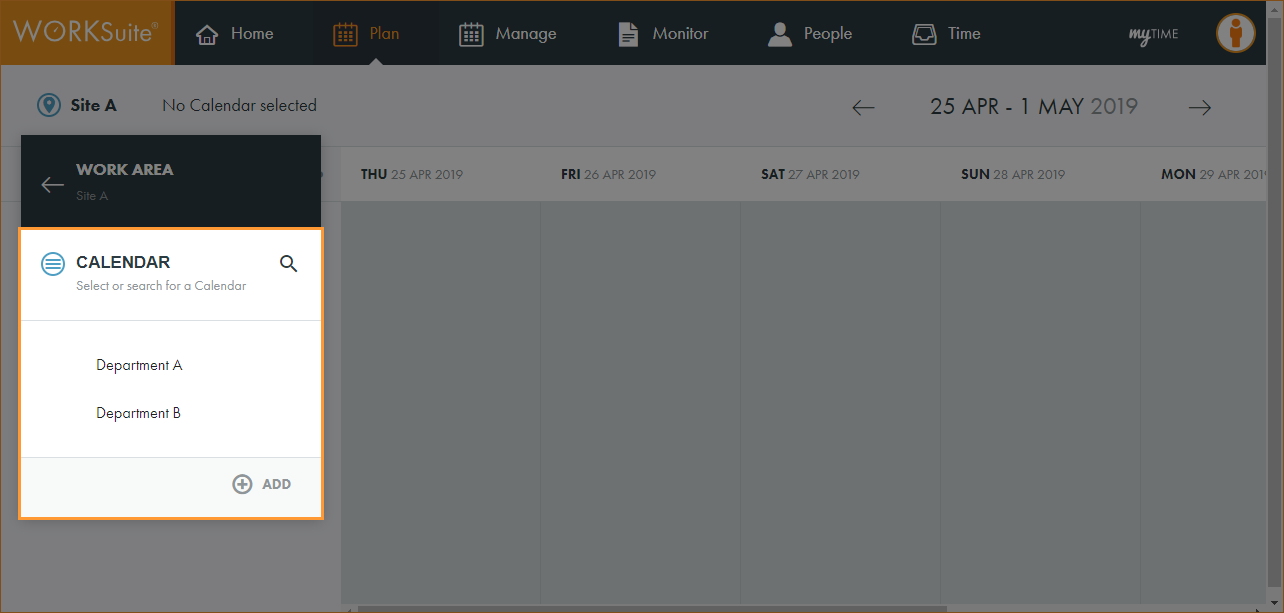
Note: By default, your previously selected calendar is preselected.
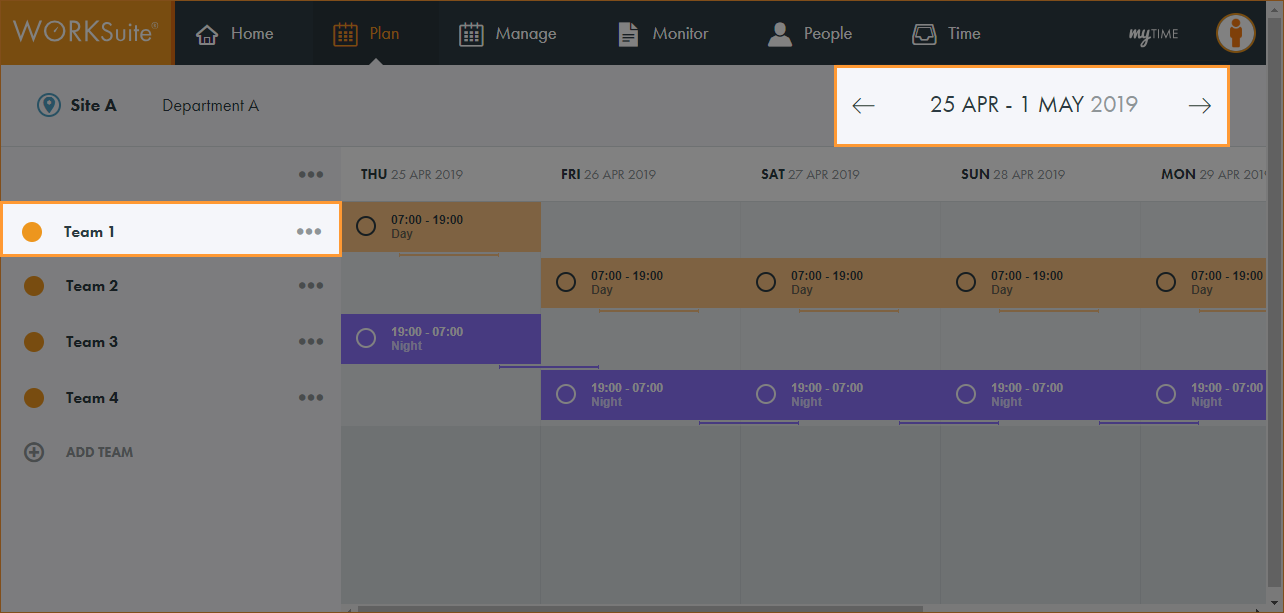
- Scroll to the team and date that you want to work with:
- Click in the cell for the date that you want to work with.
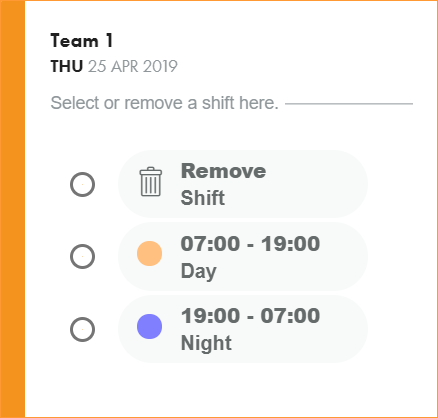
- Use the radio buttons to select or remove a shift.
- You are now ready to publish the calendar.
A popup window is displayed:
The calendar is updated.