Using the Home tab
The WORKSuite Home tab opens the Dashboard when you first log in to the software.
Use the Dashboard to see an overview of employee activity logged in WORKSuite:
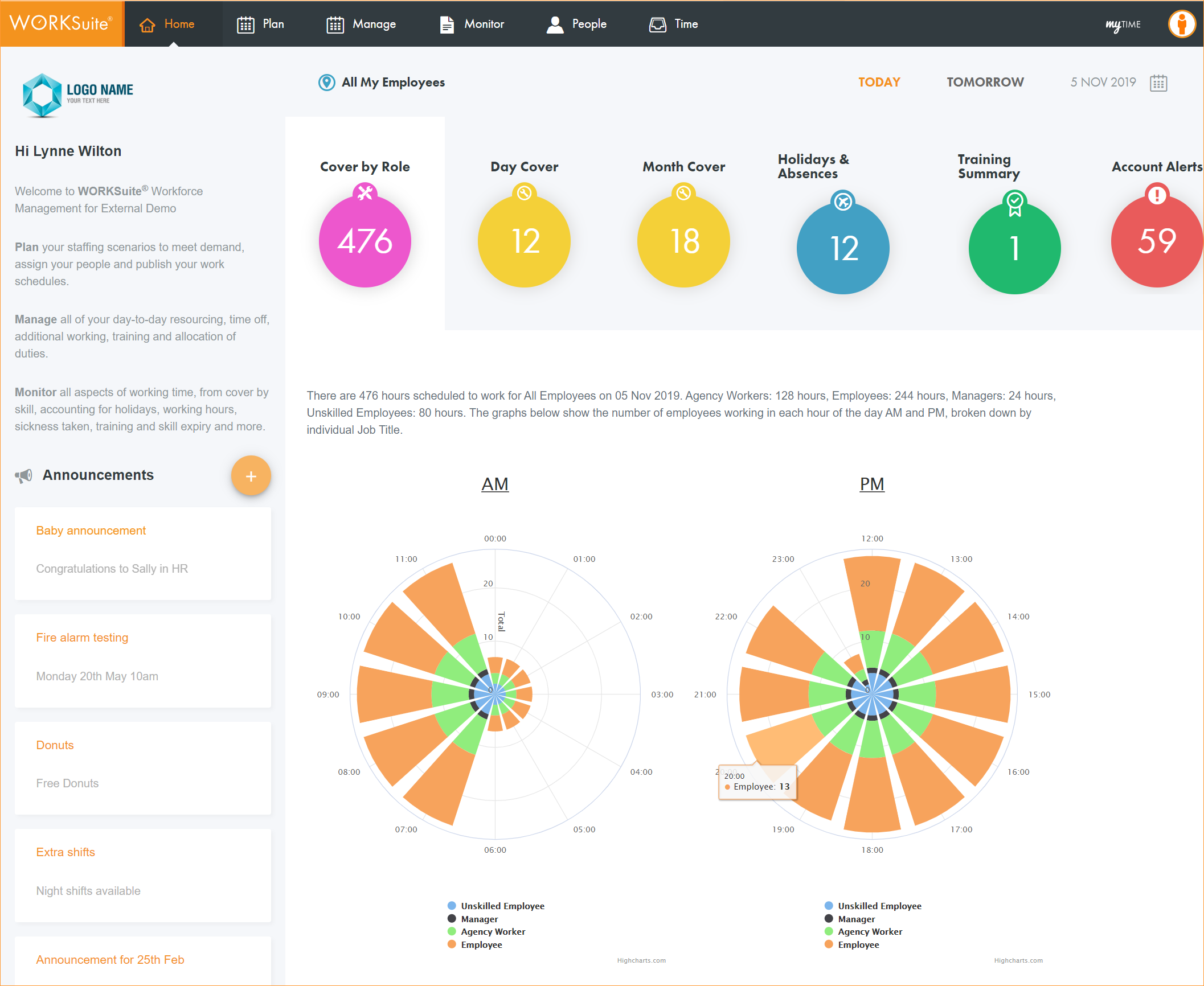
You can also create Announcements for colleagues from the Home tab.
- Click All My Employees if you want to filter the information displayed by a selected work area (all employees are selected by default):
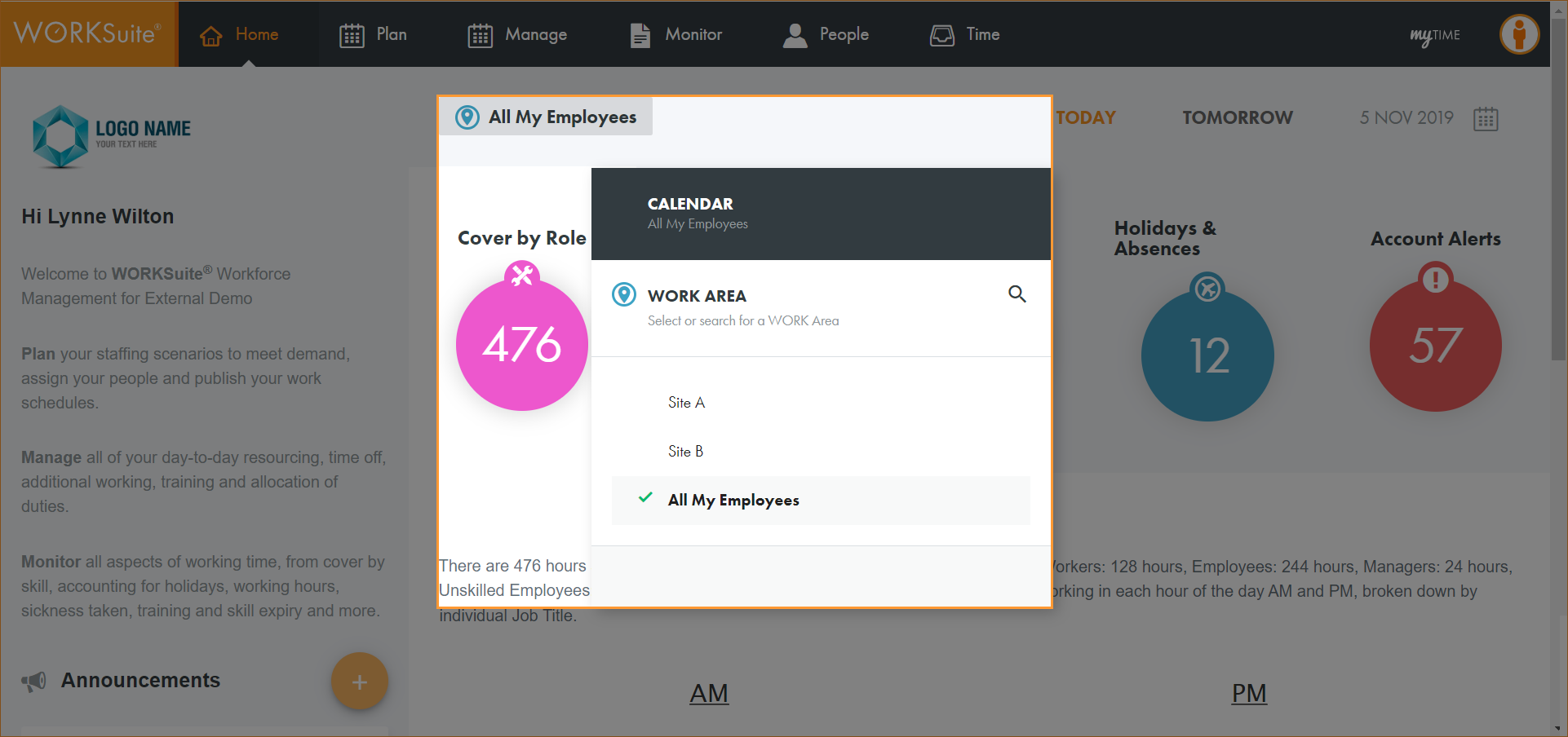
- Select a work area from the list displayed.
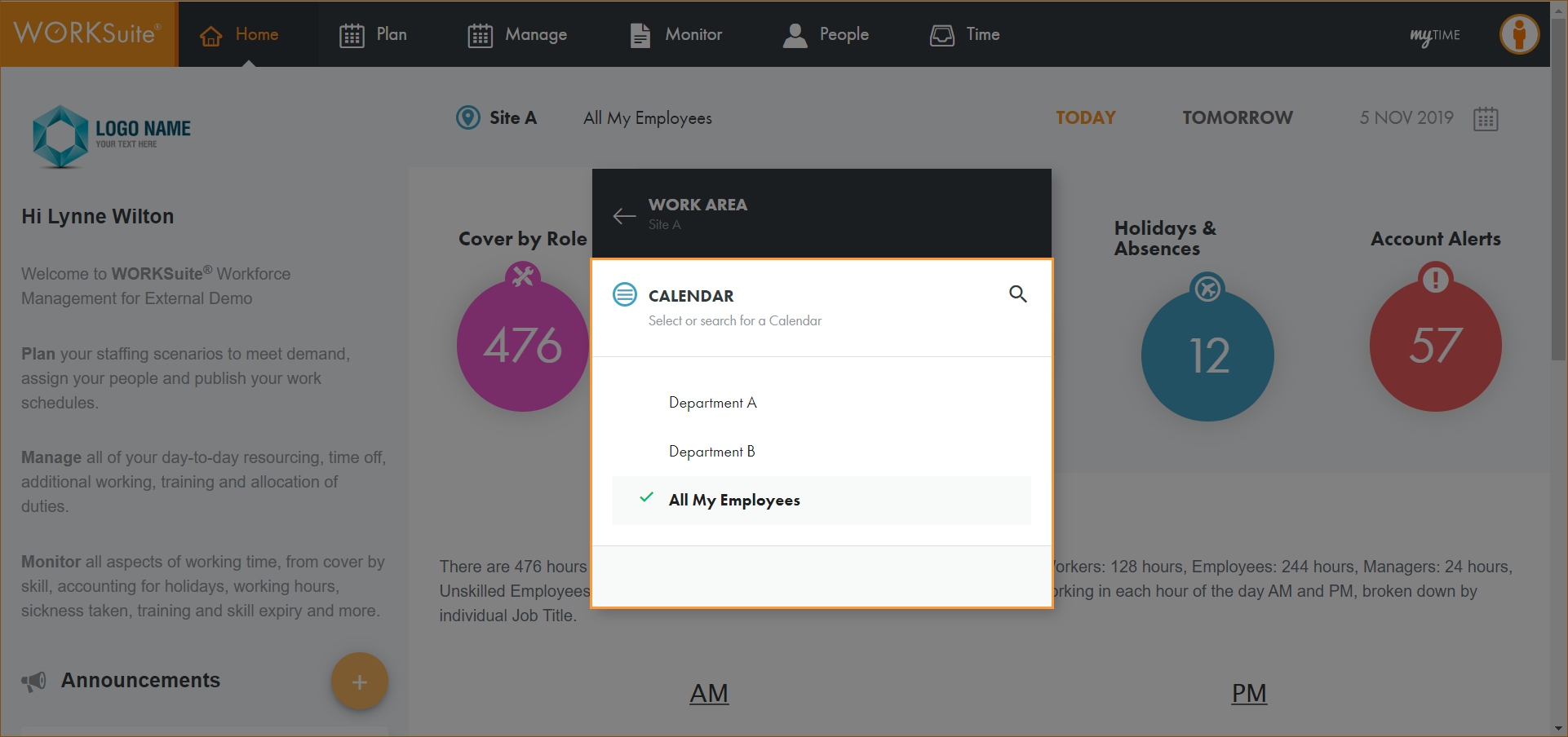
- Select a calendar to work with:
The available calendars are listed.
- Select the day or date that you want to work with. Choose TODAY or TOMORROW or click on the calendar icon and select another date:
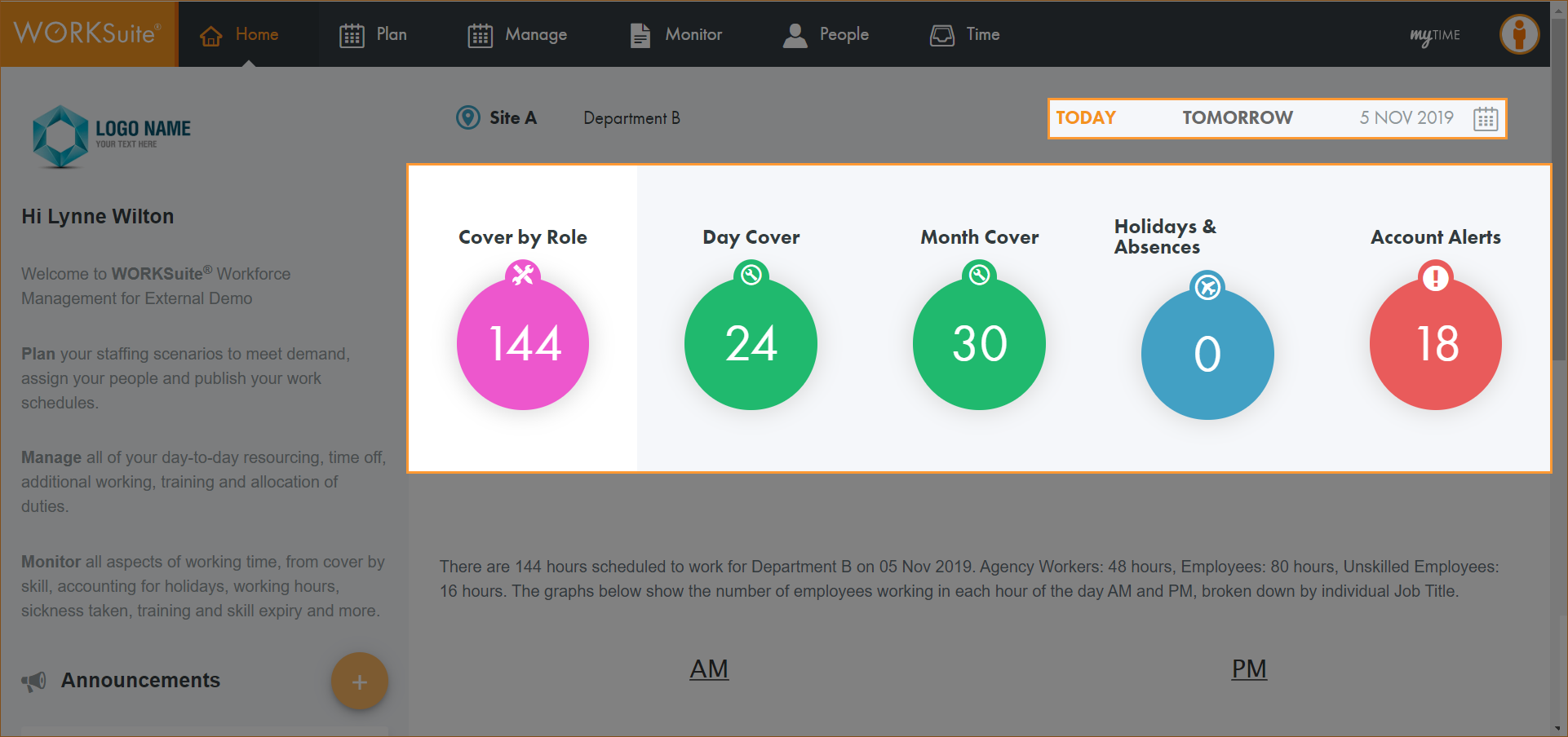
The Dashboard shows several widgets, each containing a different figure.
- Select a widget to view employee information:
 Cover by Role.
Shows the number of hours that employees have been scheduled to work for the selected day.
- Scroll to the charts displayed at the bottom of the page for a detailed breakdown of the day.
Each job title is highlighted a different colour in each chart. A key is displayed to help you.
- Hover over a coloured wedge in each chart to view the number of employees working in each scheduled hour:
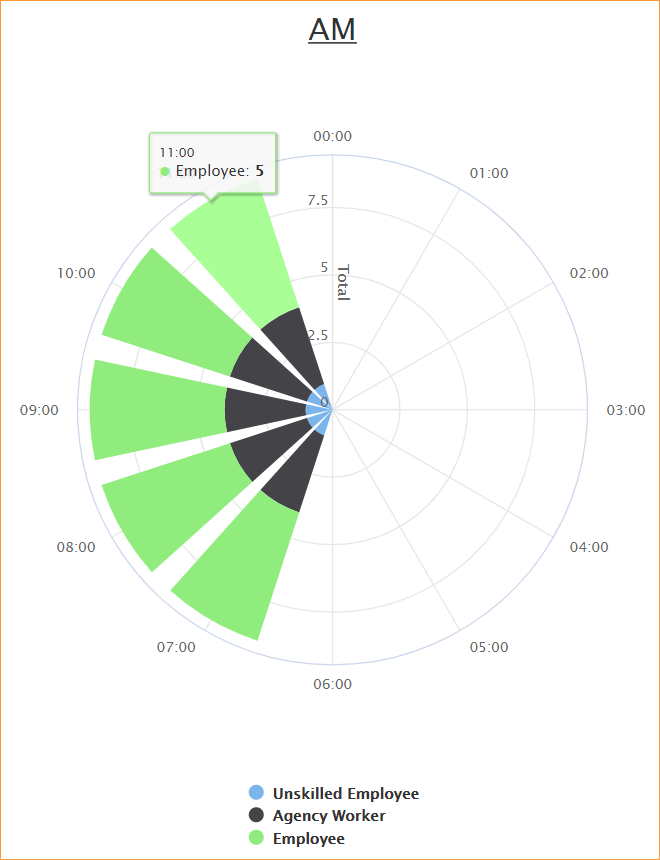
- Click on a job title in the key to filter the jobs displayed in the chart.
Day Cover.
Shows the demand required and the cover provided for each interval in the date selected. Any parts of the day which are under staffed or over staffed are clearly indicated.
The widget is highlighted using a Red Amber Green colour code to indicate staffing levels. The number in the widget is the number of intervals which are understaffed for the selected day. In this example there are 3 understaffed intervals.
- Scroll to the charts displayed at the bottom of the page for a detailed breakdown of the day:
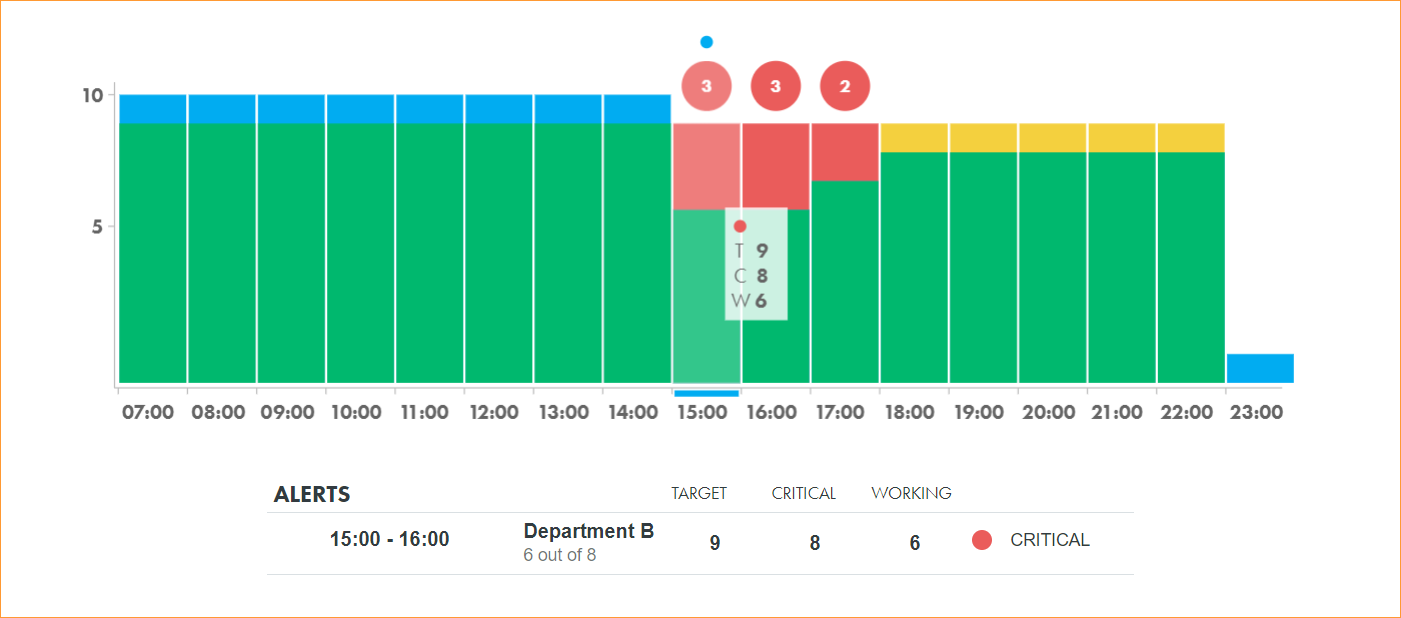
- Intervals in the day which are on staffing target are highlighted green.
- Intervals which are sub target are highlighted amber.
- Intervals which are critically under staffed are highlighted red.
- Intervals which are over staffed are highlighted blue.
- Hover and click on a bar in the demand analysis chart to drill down and view details for that interval.
Staffing figures are broken down as TARGET, CRITICAL and WORKING.
- Critical demand is the minimum staffing needed to achieve service targets.
- Target demand is the minimum staffing needed plus allowance for training, holidays, attrition and absence.
- Working is the number of staff working for the selected interval.
Month Cover.
Shows the demand required and the cover provided for each day in the month selected. Any days which are under staffed or over staffed are clearly indicated.
The widget is highlighted using a Red Amber Green colour code to indicate staffing levels. The number in the widget is the number of days which are understaffed for the selected month. In this example there are 18 understaffed days.
- Scroll to the charts displayed at the bottom of the page for a detailed breakdown of the month:
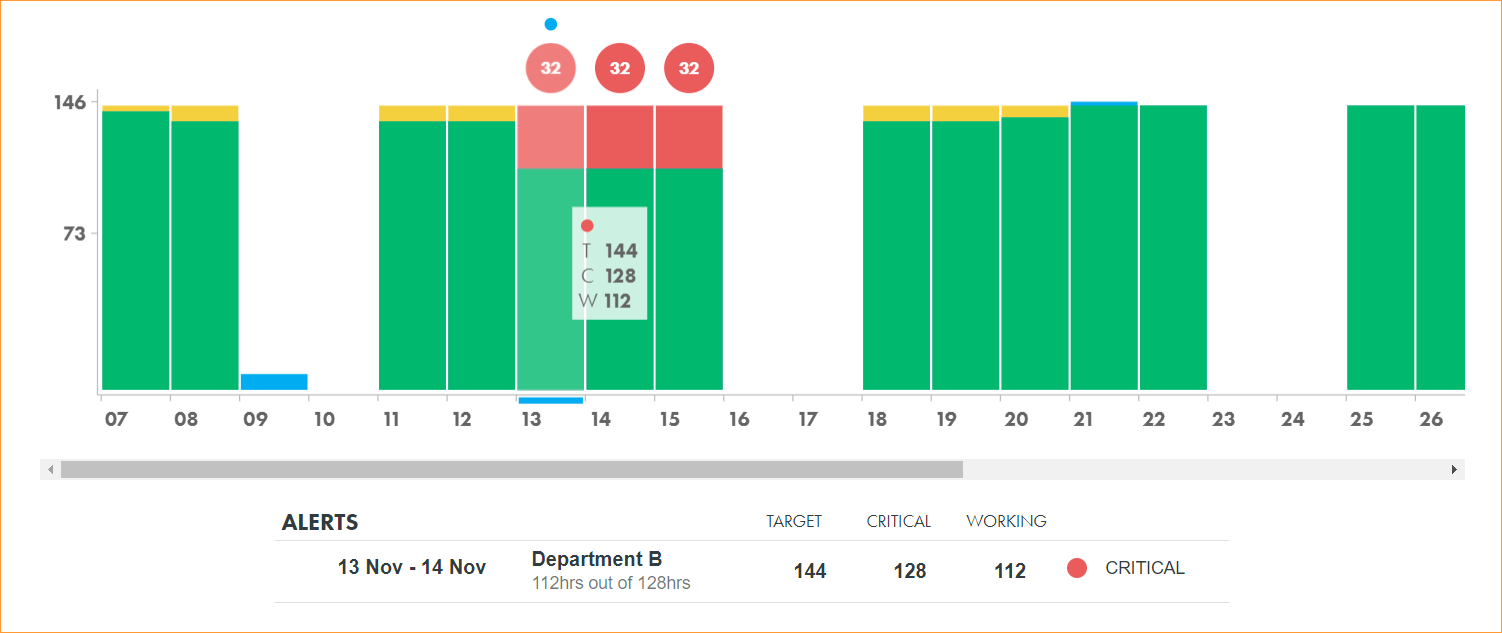
- Days which are on staffing target are highlighted green.
- Days which are sub target are highlighted amber.
- Days which are critically under staffed are highlighted red.
- Days which are over staffed are highlighted blue.
- Hover and click on a bar in the demand analysis chart to drill down and view details for that day.
Staffing figures are broken down as TARGET, CRITICAL and WORKING.
- Critical demand is the minimum staffing needed to achieve service targets.
- Target demand is the minimum staffing needed plus allowance for training, holidays, attrition and absence.
- Working is the number of staff working for the selected day.
Holidays & Absences.
The number of hours of holiday and absence for the selected day.
- Scroll to the charts displayed at the bottom of the page for a detailed breakdown of the day.
Annual leave and absence are highlighted a different colour in each chart. A key is displayed to help you.
- Hover over a coloured wedge in each chart to view the number of employees with annual leave and absence in each scheduled hour:
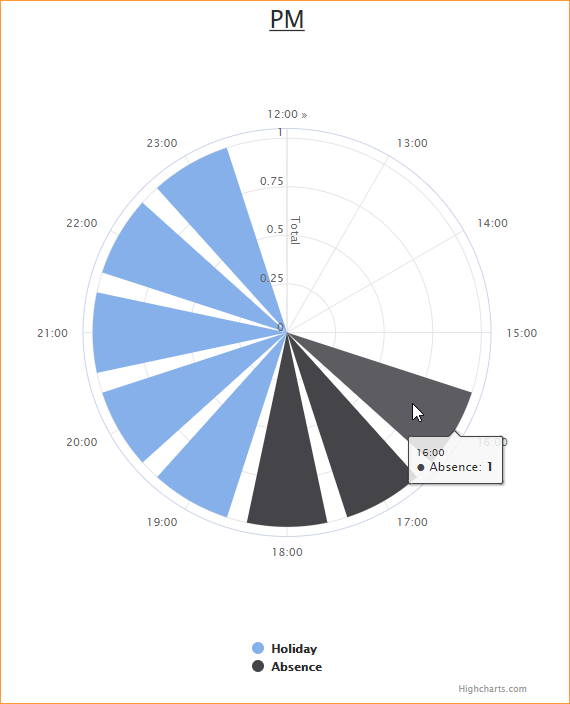
- Click on a job title in the key to filter the jobs displayed in the chart.
Training Summary.
The number of employees with training or skills requiring renewal in the next 4 weeks is displayed.
Information is pulled from the skills logged in employee records.
- Each employee with a training or skills renewal due in the next 4 weeks is listed.
- The skill and it's expiry date is shown.
- The number of days left until renewal is due is displayed.
- Click on an employee name to jump to their account information.
Account Alerts.
The number of employees who need to urgently use up their holiday entitlement is displayed.
The widget is highlighted using a Red Amber Green colour code to indicate the level of the alert on the burn rate.
The burn rate is the number of hours or days per week that have to be taken as holiday in order to use the holiday allowance before it expires. For example, any employees which need to take more than a day per week might be seen as being in red alert status. Any employees needing to take more than half a day may be seen as being in amber alert status. See What are accounts? for more help on the Red Amber Green colour code thresholds in the examples used.
In this example the widget is highlighted red:
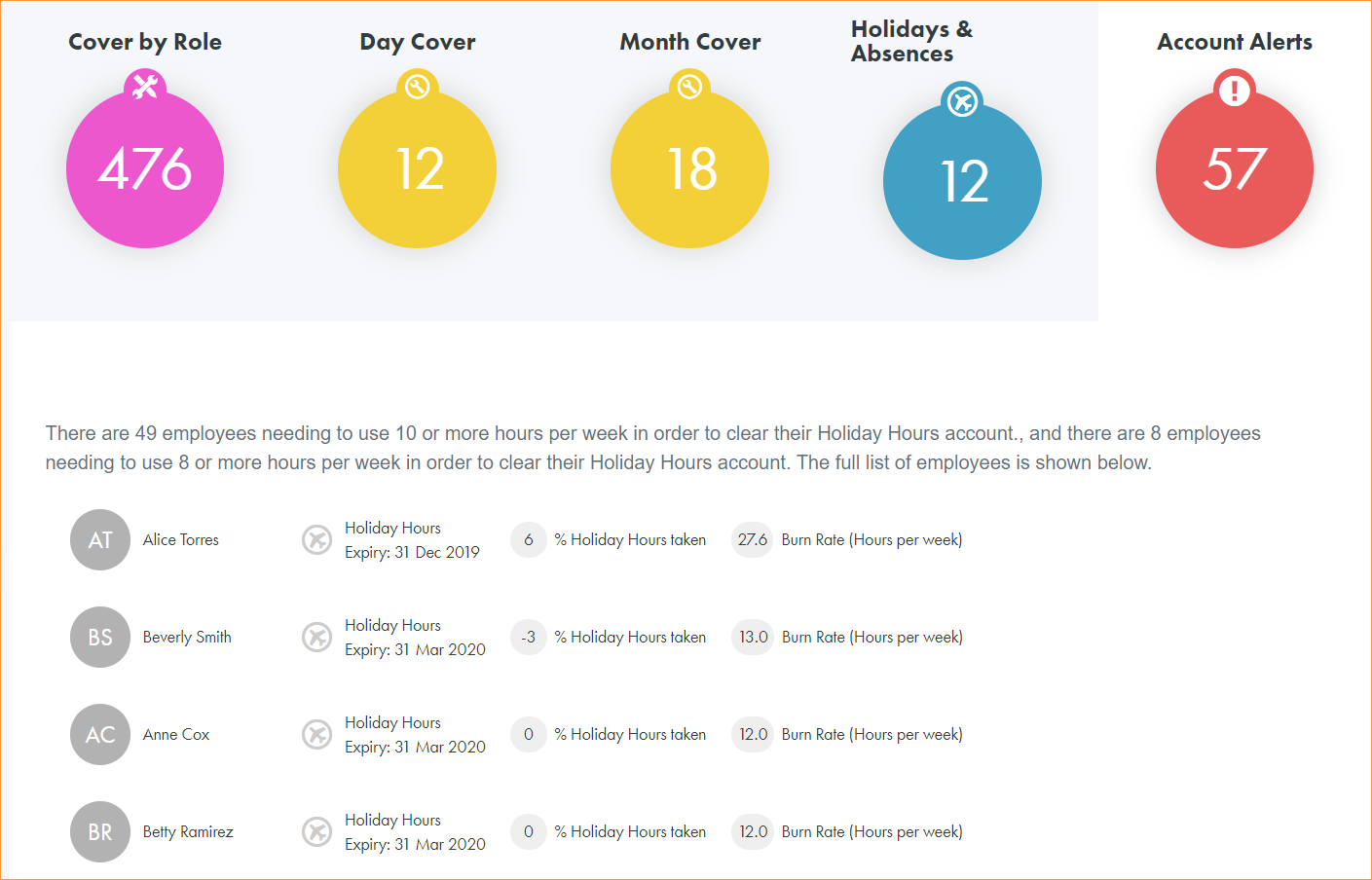
- Each employee with an account alert is listed with their holiday hours expiry date. Click here for more help understanding employee accounts.
- The percentage of holiday hours which have already been taken is shown.
- The burn rate is displayed.
- Click on an employee name to jump to their account information.